Wrong image format choices create boring problems that stack up fast. Pages load heavier than they should, screenshots look fuzzy, and somebody ends up trying to compress the same file three different ways just to recover from a bad export.
I’ve run into this constantly while testing image tools. Not in theory, in actual use. A normal product photo exported as PNG comes out at 1.9 MB for no good reason. A dashboard screenshot saved as JPG looks smaller until you zoom in and the text edges start falling apart. Most of the time, the fix is not more optimization. It is choosing the right format earlier.
The Fast Answer
If you want the short version, here it is.
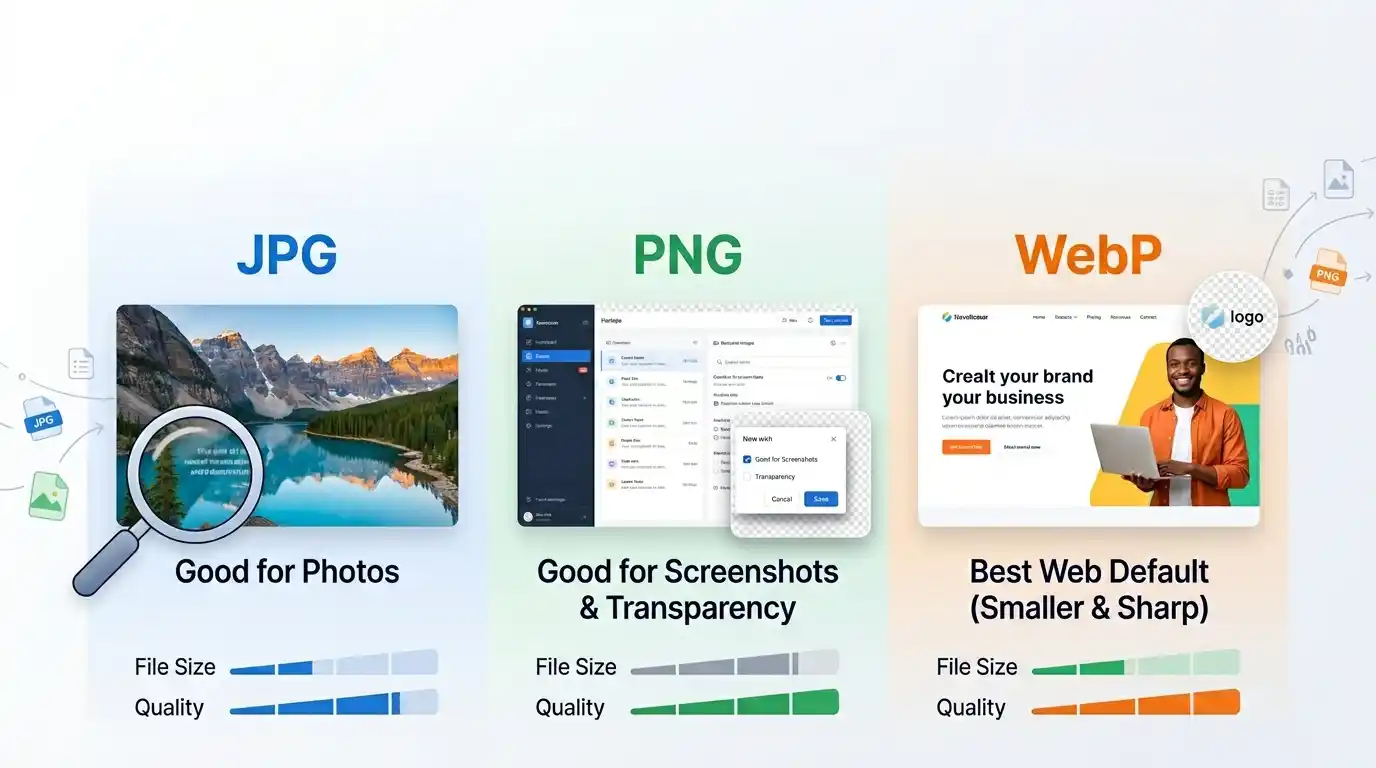
JPG is still a solid choice for photos.
PNG is the safer option for screenshots, logos, and transparency.
WebP is usually the best fit for website delivery when you want smaller files without obvious quality loss.
That covers most real cases. The rest comes down to edge cases and workflow annoyances.
JPG Is Fine, and That’s Not an Insult
JPG is old, a little messy under pressure, and still useful.
For normal photography, it remains practical. It keeps file sizes manageable, works everywhere, and does not create much friction. If you are uploading blog images, product photos, or banners and you need something predictable, JPG still earns its place.
Where JPG works well:
- photos
- featured blog images
- ecommerce product shots
- email-friendly exports
- general-purpose downloads
Where JPG starts to break down:
- screenshots
- UI images
- graphics with text
- anything with transparency
The issue is not that JPG is bad. The issue is that people keep using it where sharp edges matter. A screenshot with labels, buttons, and small text can look acceptable at a glance, then slightly broken once you notice the edge noise. That kind of quality drop is easy to miss and hard to ignore later.
PNG Gets Overused All the Time
PNG has a “better quality” reputation that causes more damage than people realize.
Yes, PNG is lossless. Yes, it supports transparency. Yes, it preserves crisp edges really well. That makes it great for interface screenshots, logos, icons, diagrams, and any image where text sharpness matters.
It also gets used for things it has no business carrying.
I still see regular photos exported as PNG because someone assumes lossless automatically means better. In practice, that usually means a much larger file with no visible payoff. A 1600 px article image that could sit comfortably at 280 KB as WebP or 420 KB as JPG suddenly shows up as a 1.7 MB PNG. It is not more professional. It is just heavier.
Use PNG when you actually need what PNG is good at:
- transparency
- sharp edges
- text in the image
- graphic assets
- screenshots
Not every image deserves lossless treatment.
WebP Is Usually the Best Web Default
WebP is the format I reach for most when the final destination is a website.
It handles the usual web tradeoff better than JPG in a lot of cases. Smaller files, decent quality, and transparency support in the same format. That last part matters more than people think. It removes a lot of the old JPG-versus-PNG decision fatigue for web assets.
A few practical examples from the kind of files I test:
- A 2400 px hero photo might export at around 430 KB as JPG and 290 KB as WebP with no obvious visual loss.
- A clean product image that sits around 780 KB as PNG can often drop to 220–320 KB as WebP if transparency is not the main concern.
- A resized article cover that still feels heavy as JPG often becomes reasonable once exported as WebP.
WebP is not magic. It does not mean every file will look better or work better everywhere. But for web delivery, it is usually the format worth testing first. If you already know the image is headed to a webpage, a quick pass through the JPG to WebP Converter is often the fastest way to see whether the savings are worth it.
How I’d Actually Choose in Real Use
This is the part that matters more than format definitions.
If it is a photo, I start with WebP. If compatibility might become annoying, I fall back to JPG.
If it is a screenshot, especially one with text, tables, or interface chrome, I usually keep it as PNG. I’ve tested enough fuzzy JPG screenshots to stop pretending the savings are always worth it.
If it is a transparent asset, I look at PNG and WebP first. JPG is out immediately.
If it is something a client or teammate needs to open in random tools without friction, I get more conservative. JPG and PNG are boring, but boring formats survive messy workflows.
Here is the quick version:
| Use case | Best starting format |
|---|---|
| Blog photo | WebP or JPG |
| Product photo | WebP |
| Screenshot with text | PNG |
| Transparent logo | PNG or WebP |
| Website hero image | WebP |
| Broad compatibility handoff | JPG or PNG |
The Mistake People Make Most
They try to solve a format problem with compression.
That usually happens after the wrong export decision. A photo gets saved as PNG, turns out massive, then someone runs it through a compressor three times trying to force it into shape. The better fix would have been to start with JPG or WebP and skip the cleanup.
The reverse mistake happens too. People convert everything to WebP because a performance tool told them to, then act surprised when some external workflow wants JPG or PNG instead. WebP is excellent for delivery. It is not automatically the best source format for every situation.
If the format is already right but the file is still too heavy, then it makes sense to use an Image Compressor. That works much better than trying to compress your way out of a bad format choice.
Sharp Text Changes the Equation
This is where PNG keeps winning.
Screenshots, charts, UI captures, code snippets rendered as images, dashboard exports, pricing tables, annotation-heavy visuals, all of those can fall apart in JPG faster than people expect. Even when the file size difference looks attractive, the text can pick up a slightly dirty edge that makes the whole image feel lower quality.
I would rather ship a crisp 260 KB PNG than a 170 KB JPG that makes the interface look soft. That is not me being precious. It is just a better tradeoff.
File Size Still Matters, Just Not Blindly
There is a bad habit in image optimization where people chase the smallest number and ignore context.
A smaller file is useful only if the image still works. If your product photo loses detail, your screenshot loses readability, or your hero banner starts looking cheap, the optimization was not actually successful.
The better habit is simple:
- resize the image to realistic dimensions
- choose the right format
- compress only after those two are already right
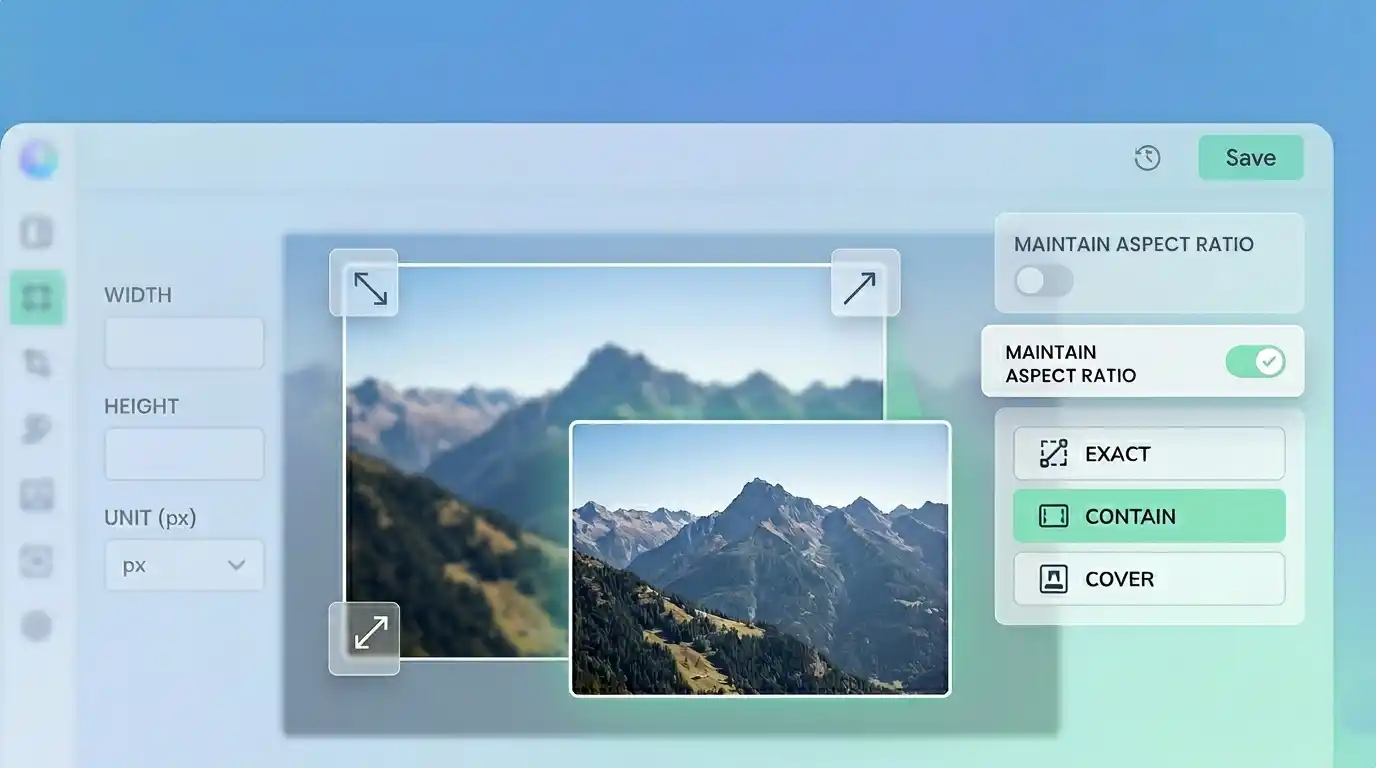
That order saves more time than people think. If your image is much larger than the layout actually needs, fix the dimensions first with an Image Resizer. If you need to switch formats across multiple file types, a general Image Converter is the easier place to start.
What I’d Do by Default
If I were publishing to a normal website today, this is my bias:
- photo: WebP
- screenshot: PNG
- transparent asset: WebP, then PNG if compatibility gets annoying
- general download file: JPG
- unknown case: export two versions, compare, move on
That last one sounds obvious, but it saves a lot of argument. Testing two files takes less time than debating format ideology.
Pro Tip
Do not compare formats on the oversized original and call it a day. Resize the image to the actual display dimensions first, then compare JPG, PNG, and WebP. That one step makes the result much more honest.
Try the tool
Test the format instead of guessing
Convert between JPG, PNG, WebP, and more right in your browser. Your data never leaves your device, so you can compare formats privately and keep the version that actually makes sense.
Open Image Converter