Most website images are heavier than they need to be.
A banner photo, a product image, a blog thumbnail, or even a simple graphic can quietly slow down a page. The visitor may not notice the exact file causing the delay, but they do notice the result: the page feels slow, images appear late, and the experience becomes less smooth.
That is where WebP matters.
WebP is a modern image format created to make images smaller while still keeping them visually clear. It is especially useful for website image optimization because image files are often one of the biggest reasons a page takes longer to load.
What Is WebP?
WebP is a modern image file format developed by Google. It was designed as an alternative to older formats like JPG and PNG, with one main goal: reduce image file size without making the image look noticeably worse.
A WebP file usually ends with .webp.
For example:
- product-photo.webp
- blog-cover.webp
- website-banner.webp
The WebP image format can handle different types of images. It supports regular photos, transparent images, and even animation. That means it can sometimes replace JPG, PNG, and GIF depending on the use case.
Why WebP Files Are Smaller
The main reason WebP is popular is compression.
Compression means reducing the amount of data inside a file. A smaller file loads faster, uses less bandwidth, and takes up less storage.
WebP supports two types of compression:
Lossy compression reduces file size by removing some image data. This is similar to JPG. If done carefully, the image can still look very good while becoming much smaller.
Lossless compression reduces file size without removing image details. This is useful when you need sharper edges, transparent graphics, screenshots, or images where clarity matters.
That flexibility is one of WebP’s biggest strengths. You can use it for lightweight photos, clean interface screenshots, transparent graphics, and faster loading images on web pages.
Why WebP Matters for Websites
WebP matters because speed matters.
When a page loads, the browser has to download every image used on that page. If those images are large, the page becomes slower. This is especially noticeable on mobile devices or slower internet connections.
Smaller image files can help with:
- Faster page loading
- Lower bandwidth usage
- Better mobile experience
- Reduced server and CDN costs
- Improved Core Web Vitals
- Better user engagement
A fast website feels cleaner and more professional. Visitors can start reading, browsing, or buying without waiting for oversized images to finish loading.
WebP does not magically fix every performance problem, but it is one of the easiest image improvements a website owner can make.
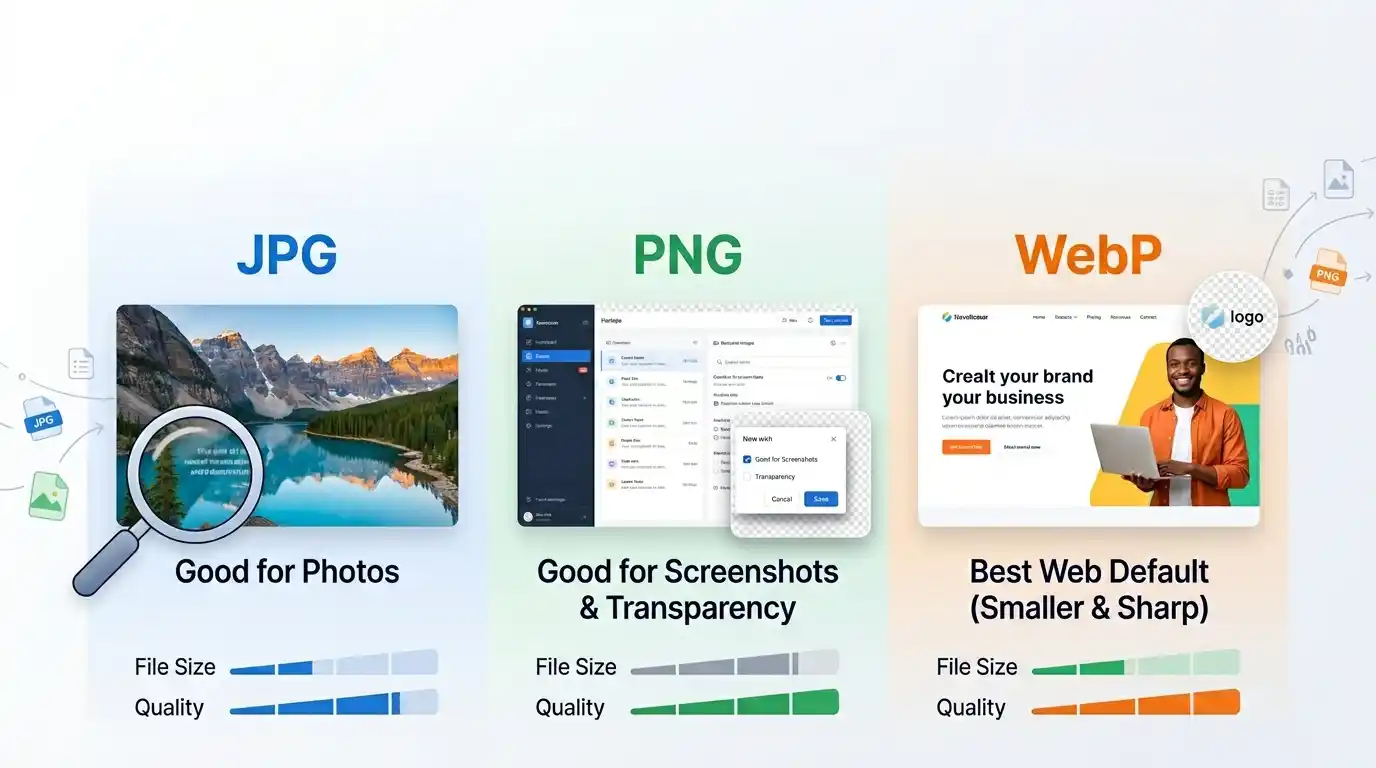
WebP vs JPG
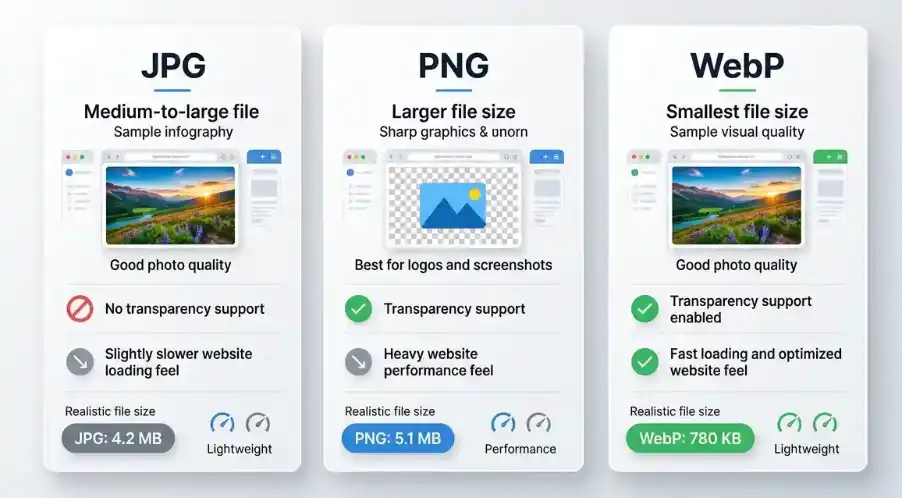
JPG is still common for photos. It works almost everywhere and is easy to use. But JPG files can become large, especially when saved at high quality.
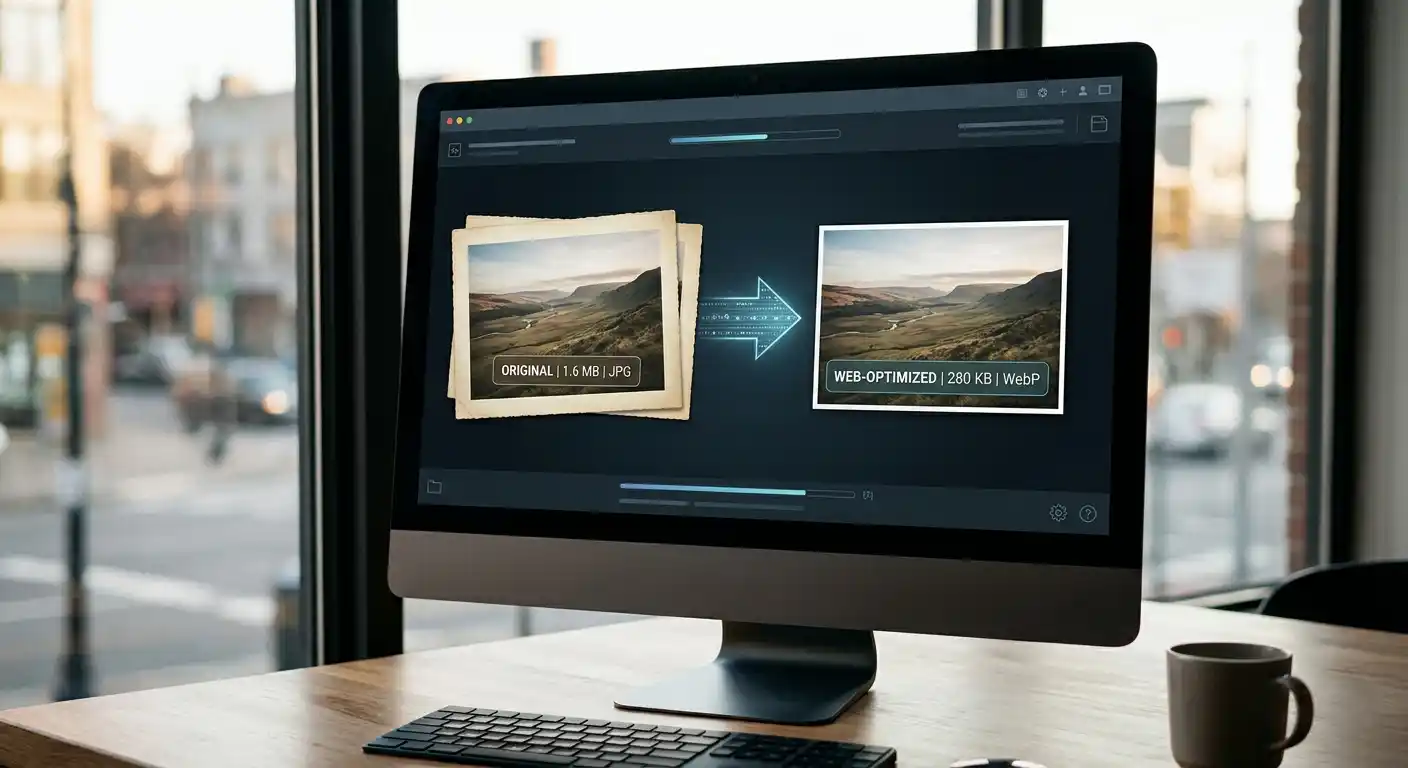
WebP often creates smaller files than JPG at similar visual quality.
Use WebP instead of JPG when you want website photos to load faster. This works well for blog images, product photos, hero images, thumbnails, and gallery images.
If you already have JPG images for your website, you can use a JPG to WebP Converter to create smaller WebP versions for faster loading.
JPG is still useful when you need maximum compatibility with older software or when a platform does not accept WebP uploads.
WebP vs PNG
PNG is useful when you need transparency or crisp graphics. Logos, icons, screenshots, and UI images often use PNG.
The downside is that PNG files can be large.
WebP also supports transparency, so it can often replace PNG for website use. A transparent WebP image may be much smaller than the same image saved as PNG.
If you have PNG images with large file sizes, try converting them with a PNG to WebP Converter. This can be especially helpful for transparent graphics used on websites.
Keep PNG when you need a source-quality file for editing or when a specific tool requires PNG.
WebP vs GIF
GIF is often used for simple animations, but GIF files can be surprisingly heavy and limited in color quality.
WebP supports animation too, and animated WebP files can be smaller than GIFs. However, not every platform handles animated WebP as smoothly as GIF.
For websites, animated WebP can be useful. For social sharing or broad compatibility, GIF may still be easier.
Image Format Comparison
| Format | Best use case | Transparency support | Typical file size | Animation support | Website performance suitability |
|---|---|---|---|---|---|
| JPG | Photos, blog images, product photos | No | Medium to large | No | Good, but often larger than WebP |
| PNG | Transparent graphics, screenshots, logos | Yes | Often large | No | Good for quality, weaker for speed |
| GIF | Simple animations | Limited | Often large | Yes | Usually not ideal for performance |
| WebP | Website images, photos, transparent graphics, optimized visuals | Yes | Usually smaller | Yes | Strong choice for faster websites |
This does not mean WebP should replace every image in every situation. It simply means WebP is often a better delivery format when your main goal is smaller image files and faster loading pages.
Browser Support for WebP
Modern browsers support WebP widely. Chrome, Edge, Firefox, Safari, and most mobile browsers can display WebP images without a problem.
For normal website use, WebP is now a safe choice in most cases.
The place where you may still run into issues is older software, old image editors, some upload forms, or tools that prefer JPG or PNG. If a file does not open somewhere, you can convert it back using a WebP to JPG Converter.
A simple habit works well: keep your original JPG or PNG file, then use WebP for the optimized website version.
When Should You Use WebP?
WebP is a good choice for most website images.
Use it for:
- Blog post images
- Website banners
- Product images
- Portfolio images
- Thumbnails
- Landing page graphics
- Transparent icons or illustrations
- Image-heavy pages that need better speed
If your website currently uses many JPG or PNG files, converting some of them to WebP can reduce page weight noticeably.
You do not always need to convert every image. Start with the largest and most-used images first. Homepage banners, product photos, article covers, and category images usually give the biggest improvement.
When WebP May Not Be the Best Choice
WebP is useful, but it is not always the perfect format for every situation.
You may avoid WebP when:
- A website or app does not support WebP uploads
- You need to send files to someone using older editing software
- You need a print-ready file
- You are saving original source images for future editing
- A social platform compresses or converts images anyway
For editing and archiving, keeping an original JPG or PNG copy can be smart. Then you can export a WebP version for the website.
Think of WebP as a delivery format. It is excellent for showing images online, but it does not always need to replace your original files.
Does WebP Reduce Image Quality?
It depends on how the image is converted.
A badly compressed WebP image can look blurry, blocky, or faded. A well-compressed WebP image can look almost the same as the original while being much smaller.
The goal is balance.
You want the file to be small enough to load quickly, but not so compressed that the image looks damaged. For most website images, a medium-to-high quality WebP setting works well.
After converting an image, always check:
- Does the image still look sharp?
- Are faces, text, and edges clear?
- Does the background show strange blocks or color bands?
- Is the file size meaningfully smaller?
If the answer looks good, the WebP version is probably ready to use.
How WebP Helps SEO
WebP itself does not automatically make a page rank higher. But it can help with performance, and performance affects the overall quality of the page experience.
Search engines want users to reach useful pages quickly. If your pages are slow because of large images, that can hurt user experience.
Using WebP can support SEO by improving:
- Page speed
- Mobile loading experience
- Largest Contentful Paint
- User engagement
- Crawl efficiency for image-heavy sites
It is not the only thing that matters. You still need good content, proper alt text, useful page structure, and relevant images. But optimized images make the whole page work better.
Resize First, Then Convert
A good WebP workflow starts before conversion.
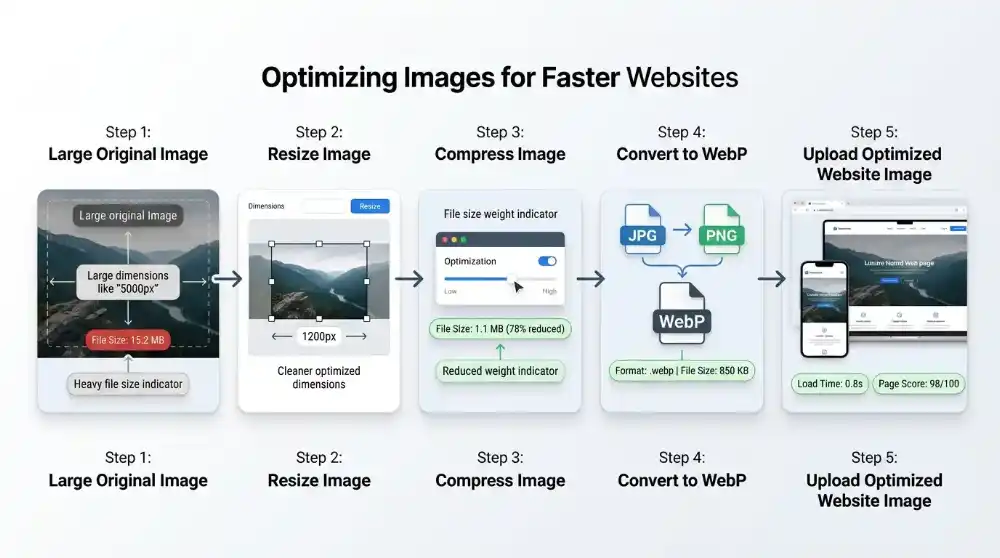
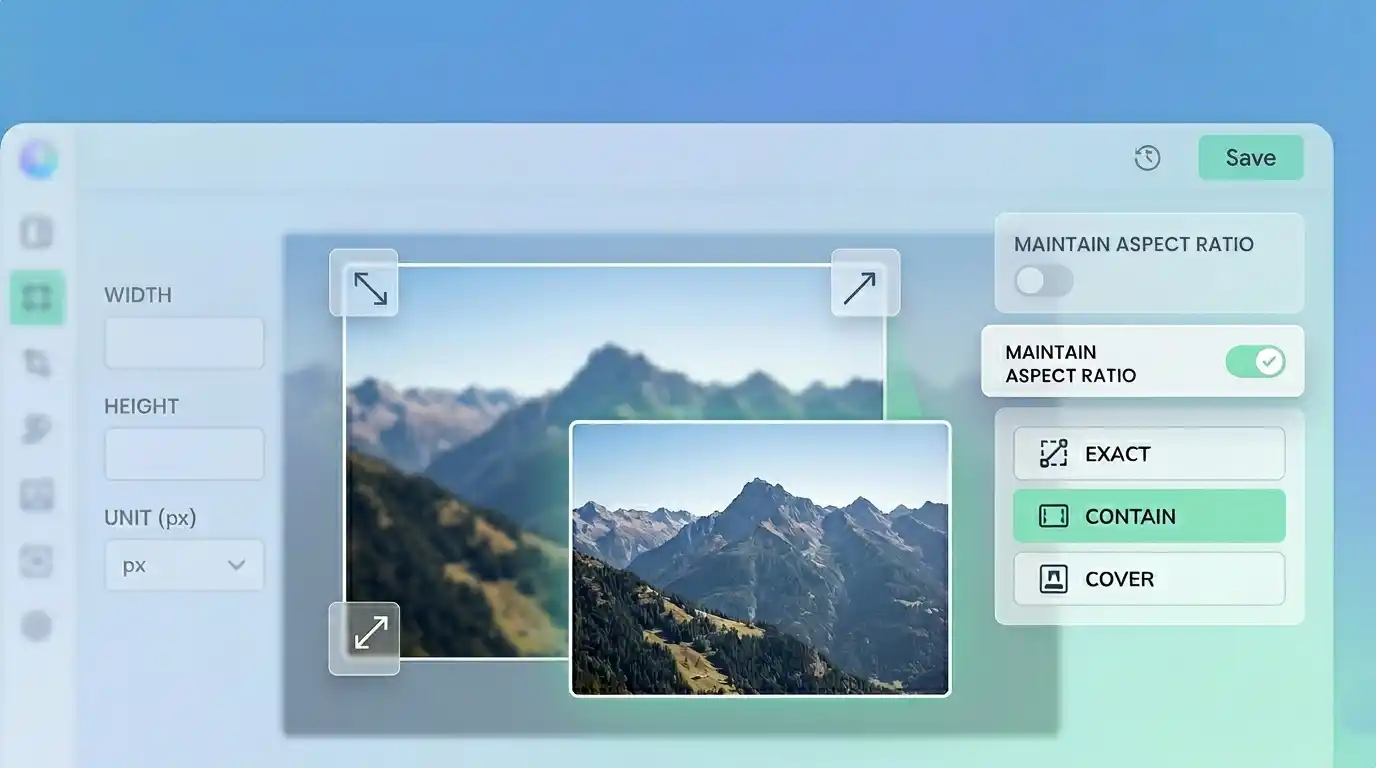
Do not upload a massive image and rely only on WebP to save it. A 5000px-wide photo is still oversized if your website only displays it at 1200px wide.
First, resize images online to match the dimensions you actually need. This reduces oversized dimensions and removes unnecessary image weight before the file is even compressed.
Then, use an Image Compressor to reduce the file size before upload. Compression helps remove extra file weight while keeping the image clear enough for normal website use.
After that, convert the image to WebP. You can convert JPG images with the JPG to WebP Converter or convert transparent PNG files with the PNG to WebP Converter.
The simple version is:
- Resize the image
- Compress the image
- Convert JPG or PNG to WebP
- Upload the optimized WebP file
- Check how it looks on desktop and mobile
This gives better results than format conversion alone.
Helpful Tools for WebP Image Optimization
If you are preparing images for a website, you do not need a complicated workflow.
For regular photos, use the JPG to WebP Converter to turn JPG images into smaller WebP files.
For transparent graphics, icons, or screenshots, use the PNG to WebP Converter to keep transparency while reducing file size.
Before uploading, run large images through the Image Compressor so they are lighter and easier for visitors to load.
This is a practical way to improve website image optimization without needing design software or technical setup.
FAQ
What is WebP used for?
WebP is used for displaying smaller image files on websites. It is commonly used for blog images, product photos, banners, thumbnails, and transparent graphics that need to load quickly.
Is WebP better than JPG?
WebP is often better than JPG for websites because it can create smaller image files at similar visual quality. JPG is still useful for compatibility, editing, and platforms that do not accept WebP.
Does WebP support transparency?
Yes. WebP supports transparency, which means it can often replace PNG for website graphics, icons, logos, and images with transparent backgrounds.
Can all browsers open WebP images?
Most modern browsers support WebP, including Chrome, Firefox, Edge, Safari, and mobile browsers. Some older software or tools may still prefer JPG or PNG.
Should I convert all images to WebP?
Not always. Convert the images that affect website speed the most, such as large banners, product images, blog covers, and thumbnails. Keep original JPG or PNG files for editing and backup.
Final Thoughts
WebP matters because it solves a very real website problem: images need to look good, but they also need to load fast.
For most modern websites, WebP is one of the most practical image formats to use. It can replace many JPG and PNG files, reduce file size, improve loading speed, and make pages feel smoother for visitors.
The best part is that you do not need to change your whole website at once. Start with a few large images, compare the file sizes, check the quality, and replace the images that benefit most.
Small improvements across many images can make a website feel much faster.