A Facebook cover photo is wide, narrow, and very easy to crop badly.
A photo that looks great in your gallery may look awkward once it becomes a cover image. Important text can disappear. Faces can get cut off. Logos can sit too close to the edge.
On mobile, the same image may appear differently than it does on desktop.
That is why learning how to resize Facebook cover photo images properly is not only about entering the right width and height.
You also need to think about framing.
The size can be correct and still look wrong.
What Is the Facebook Cover Photo Size?
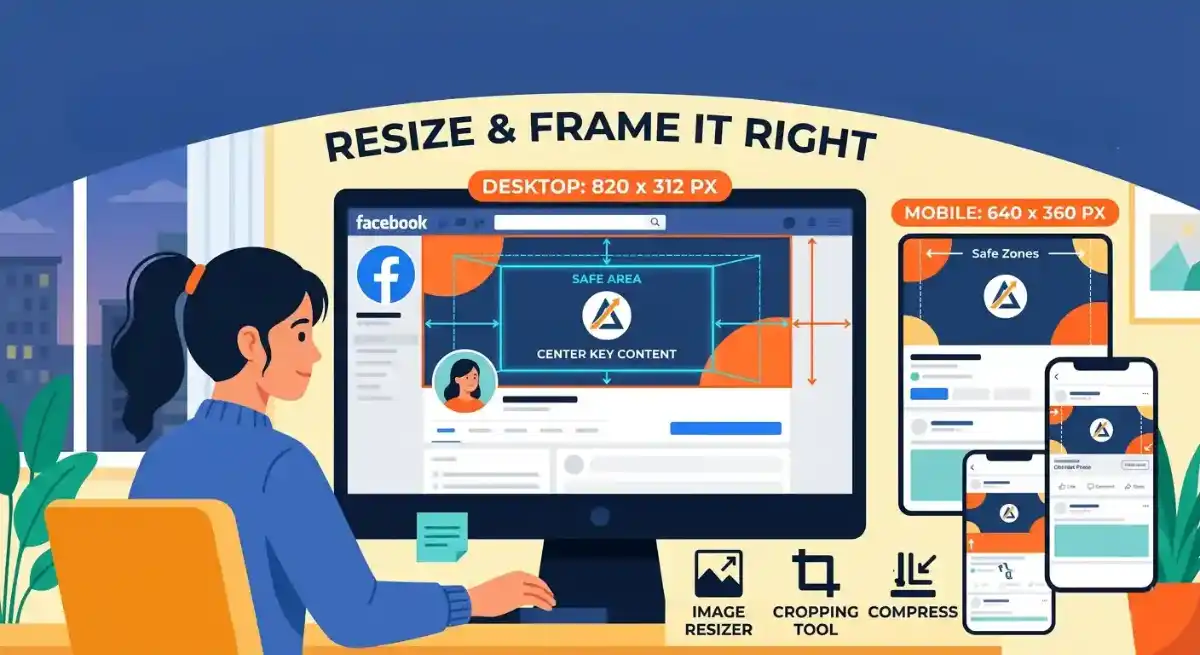
Facebook cover photos are commonly displayed around 820 x 312 pixels on desktop.
Meta also recommends fast-loading Page cover images as sRGB JPG files around 851 x 315 pixels and under 100 KB.
So which size should you use?
For a quick desktop cover size, 820 x 312 px is still a practical option. It also matches the Facebook Cover preset in the Image Resizer.
For a Page cover where you want to follow Meta’s fast-loading recommendation more closely, 851 x 315 px is also worth considering.
The most important point is not only the exact number. It is whether the image looks good after Facebook displays it on different devices.
On mobile, cover photos may be shown in a taller crop. That means a cover that looks good on desktop can still cut off text or faces on a phone.
For the latest requirements, check Meta’s official help pages before uploading an important business or brand cover.
Facebook Cover Photo Size Quick Reference
| Facebook cover use | Common size | Notes |
|---|---|---|
| Desktop display size | 820 x 312 px | Common desktop cover display size and available as a Pro Preset in Image Resizer |
| Meta fast-loading Page cover recommendation | 851 x 315 px | Recommended as sRGB JPG under 100 KB |
| Minimum width | At least 720 px wide | Smaller images may not upload or may look blurry |
| Mobile display behavior | Taller crop on many phones | Keep important content centered |
| Safer design area | Center of the image | Keep text, faces, and logos away from edges |
These numbers are useful, but the safest habit is to keep important content centered.
Facebook can change layout details over time, and different devices may display the cover slightly differently.
Why Facebook Cover Photos Get Cropped
Facebook cover photos get cropped because desktop and mobile screens do not show the exact same shape.
Desktop usually shows a wide, short banner.
Mobile may show a taller version.
That means the same image can lose parts of the top, bottom, or sides depending on where it is viewed.
This matters most when your cover photo includes:
- Text
- A logo
- A face
- Product images
- A call-to-action
- Contact details
- Important background elements
If those elements are too close to the edge, they may be cut off.
Most people notice the problem only after uploading.
A simple rule helps:
Keep important content near the center of the image.
Use the edges for background, color, pattern, or extra space.
Use the Facebook Cover Preset in Image Resizer
If you do not want to type the dimensions manually, use the Image Resizer.
The SolutionBazz Image Resizer includes a Pro Presets section with a Facebook Cover preset. This preset sets the image size to 820 x 312 pixels, which is a common desktop Facebook cover photo size.
This is useful when you want a quick Facebook banner size without calculating the width and height yourself.
Use the preset when:
- You need a Facebook cover photo quickly
- Your image is too large
- Your image has the wrong shape
- You want a clean 820 x 312 px output
- You are preparing a banner for a page, profile, or business page
The preset handles the size. It does not choose the best part of the photo for you.
So preview the result before downloading. If the subject feels too close to an edge, adjust the crop before final export.
Crop the Image Into a Banner Shape
A tall phone photo is the wrong shape for a Facebook cover banner.
A square image has the same problem.
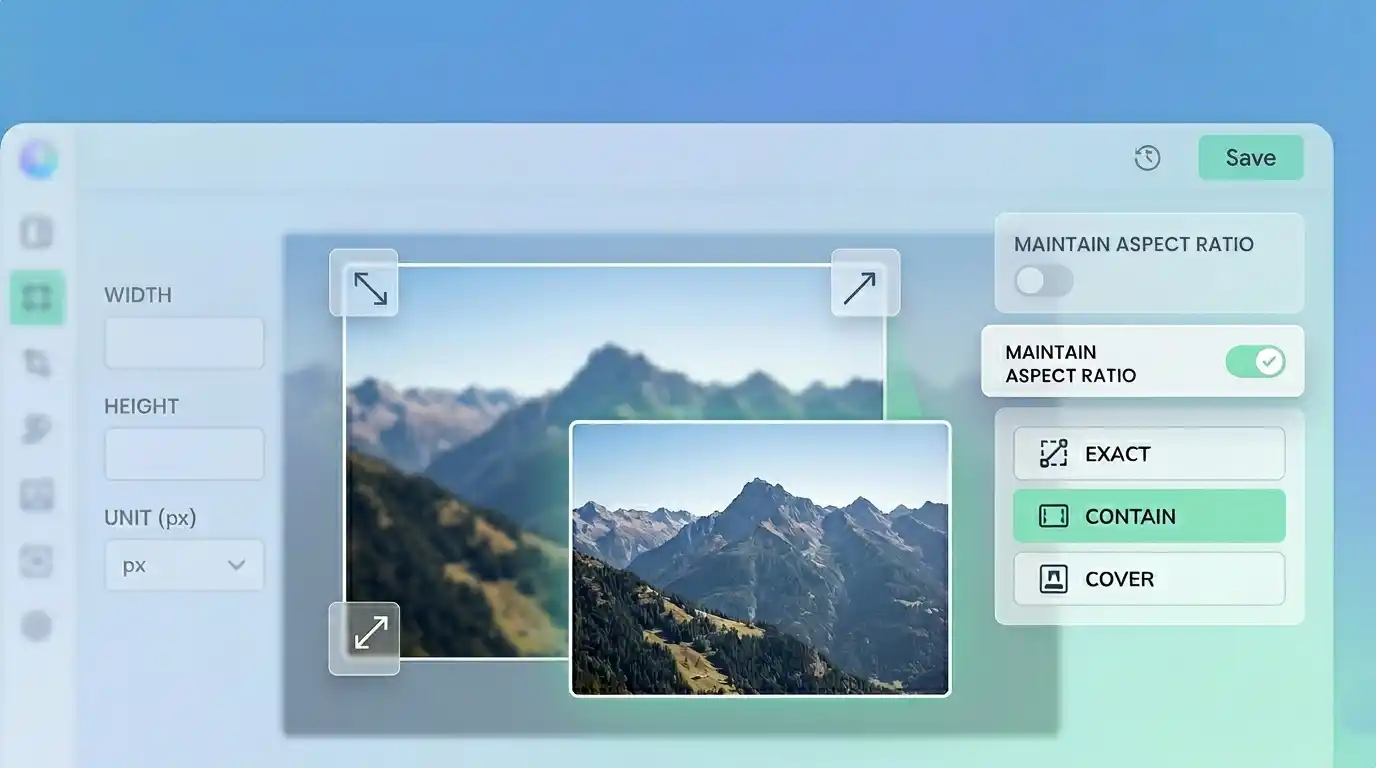
If you force either one into 820 x 312 pixels or 851 x 315 pixels without choosing the frame first, the result can look stretched, cramped, or badly cut.
This is where cropping helps.
Use the Image Cropper to choose the best wide area of the image before resizing. Think of it as choosing what part of the photo deserves to become the banner.
When cropping, try to keep the main subject centered. If there is text or a logo, keep it away from the left, right, top, and bottom edges.
For Facebook cover photos, background space is helpful. A little empty space around the subject gives Facebook more room to crop the image on different screens.
How to Resize Facebook Cover Photo Images to the Right Size
Once the banner frame looks right, set the final dimensions.
For the common desktop Facebook cover size, use:
820 x 312 pixels
For Meta’s fast-loading Page cover recommendation, use:
851 x 315 pixels
In the Image Resizer, you can resize the cover in two ways:
- Choose the Facebook Cover option from Pro Presets for 820 x 312 px.
- Manually enter 851 for width and 315 for height if you want to use Meta’s fast-loading Page cover recommendation.
The preset is easier because it already knows the common Facebook cover size.
Still, look at the preview carefully.
If your logo, face, or headline sits near the edge, the image may technically be the right size but still fail in real use. Move the subject inward, then export again.
Should You Use 820 x 312, 851 x 315, or a Larger Size?
For many users, 820 x 312 px is a practical Facebook cover size because it matches the common desktop display size and the Image Resizer preset.
For Facebook Pages, 851 x 315 px is also useful because Meta mentions it as a fast-loading JPG recommendation.
You may also see people use larger versions with a similar wide shape, such as:
- 1640 x 624 pixels
- 1702 x 630 pixels
A larger image can sometimes look sharper on high-resolution screens, but it can also create a heavier file.
For most simple cover photos, start with 820 x 312 px using the preset or 851 x 315 px if you want to follow Meta’s Page cover recommendation.
If your cover contains small text, a logo, or product details, test the upload and check it on both desktop and mobile.
Keep Important Content in the Safe Area
A Facebook cover photo should not use every edge for important content.
The safest area is the center.
Place key elements near the middle, such as:
- Your face
- Business logo
- Brand name
- Main product
- Short headline
- Website or contact detail
The edges are not reliable places for important details.
Use them for background, texture, color, or extra space.
Also avoid tiny text. Even if the image is the correct size, small text can become hard to read after Facebook compresses the upload.
If you are designing a business cover, keep the message short and clear.
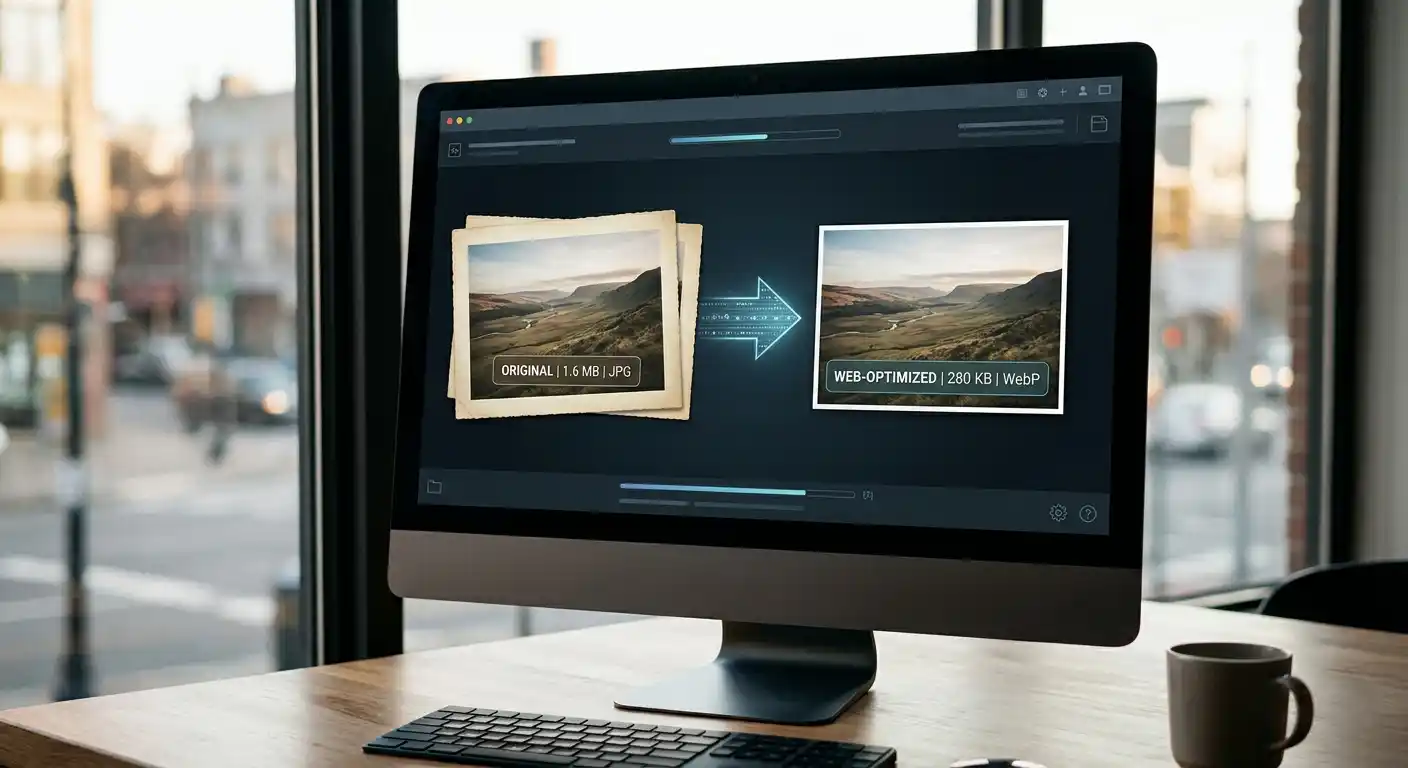
Compress the Cover Photo Before Uploading
After resizing, check the file size.
Meta’s fast-loading Page cover recommendation mentions an sRGB JPG file under 100 KB. Even when you are not aiming for that exact number, keeping the file light is still a good idea.
You can use the Image Compressor to reduce the file size before uploading. This helps keep the image lighter while still looking clean.
For a Facebook cover photo, the goal is not to make the file as tiny as possible.
The goal is to keep the image clear while avoiding unnecessary file weight.
After compression, zoom in and check:
- Does the text still look readable?
- Does the logo still look sharp?
- Are faces clear?
- Are there strange blocks or blurry areas?
If the image looks damaged, use lighter compression.
Choose the Right Format for a Facebook Cover
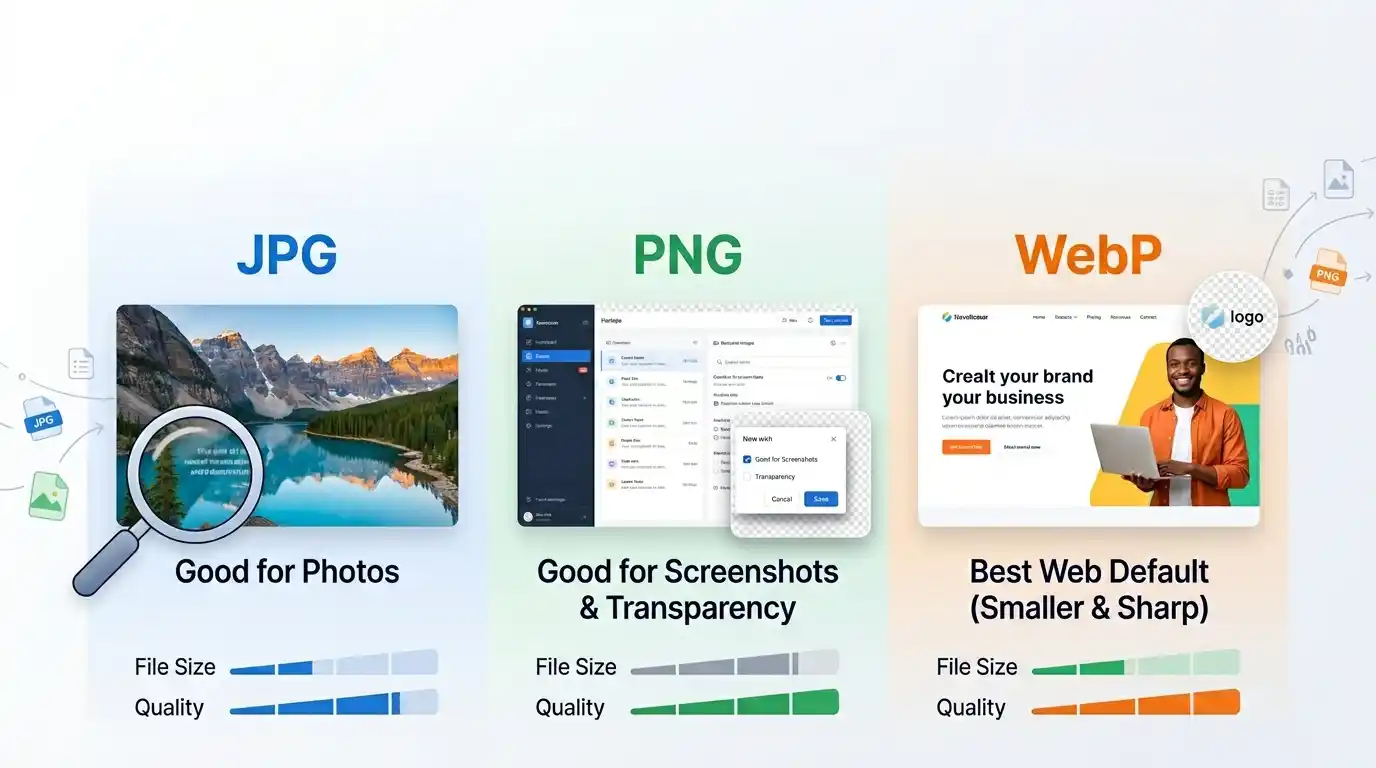
JPG and PNG are both common choices for Facebook cover photos.
Use JPG when the cover is mostly a photo, such as a portrait, landscape, product photo, or event image.
Use PNG when the cover has sharp graphics, text, logos, or flat colors.
For Meta’s fast-loading Page cover recommendation, sRGB JPG is the format to consider.
If you created a WebP image but Facebook or your workflow needs JPG, you can convert it with the WebP to JPG Converter.
If your cover is PNG but the file is too large, you can either compress it or convert it to JPG with the PNG to JPG Converter if transparency is not needed.
For most Facebook covers:
- JPG is good for photos
- PNG is good for logos and text-heavy graphics
- WebP is useful for websites, but JPG or PNG is usually safer for social uploads
Step-by-Step: Resize an Image for Facebook Cover
Here is a simple workflow:
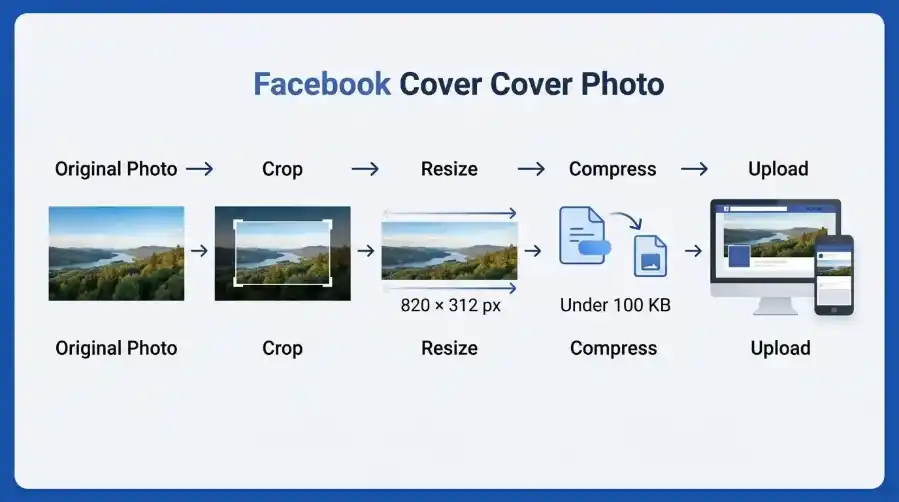
- Choose a clear image for your cover.
- Pick the wide banner area with the Image Cropper if needed.
- Open the Image Resizer.
- Select the Facebook Cover preset from Pro Presets for 820 x 312 px, or enter 851 x 315 px manually.
- Preview the result.
- Keep text, faces, and logos near the center.
- Use the Image Compressor if the file is heavier than needed.
- Upload it to Facebook.
- Check how it looks on desktop and mobile.
If the mobile version cuts off something important, go back and adjust the framing.
Usually, moving the subject closer to the center solves the problem.
Example: Resizing a Business Cover Photo
Suppose you are creating a Facebook cover for a small business.
Your original image is a product photo with a logo and a short headline.
If the logo is on the far left and the headline is on the far right, the cover may look fine on desktop but get cropped awkwardly on mobile.
A better layout puts the product, logo, and headline closer to the middle. The far sides can stay as background.
Once the layout is set, use the Facebook Cover preset to export the image at 820 x 312 pixels. Or, if you are preparing a Page cover and want to follow Meta’s fast-loading recommendation, enter 851 x 315 pixels manually.
Then compress it lightly if the file is large.
The result should feel clean, centered, and easier to view on different devices.
Common Facebook Cover Photo Mistakes
The most common mistake is using an image that is the wrong shape.
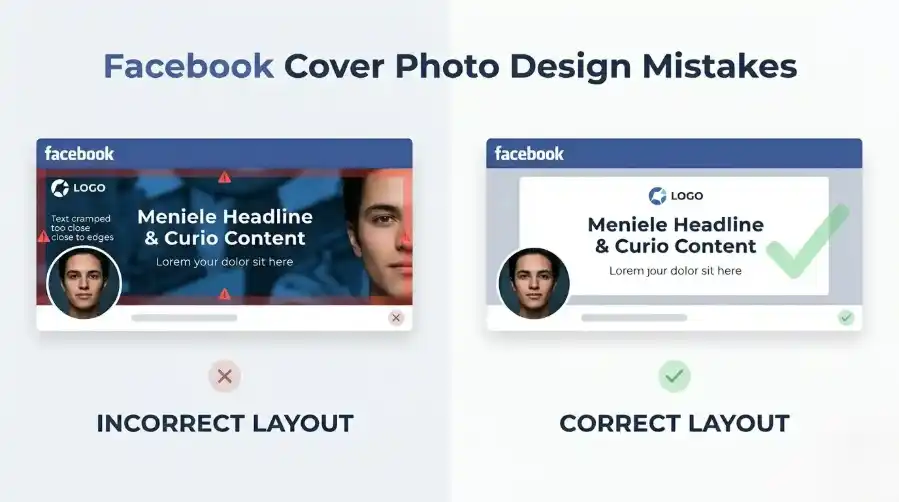
A square image or vertical photo will need heavy cropping to become a Facebook cover. If the subject is too close to the edge, it may not fit well.
Other common mistakes include:
- Using tiny text
- Placing logos near the edge
- Uploading a blurry image
- Stretching the image instead of cropping
- Ignoring the mobile view
- Using a file that is much heavier than needed
- Choosing a busy background behind important text
- Assuming one size will look perfect on every device
A good Facebook cover photo should be simple, clear, and easy to understand quickly.
It should not make visitors work to read it.
FAQ
What size should a Facebook cover photo be?
Facebook cover photos are commonly displayed around 820 x 312 pixels on desktop. Meta also recommends fast-loading Page cover images as sRGB JPG files around 851 x 315 pixels and under 100 KB.
Is 820 x 312 or 851 x 315 better for a Facebook cover?
Use 820 x 312 px if you want the common desktop cover display size or the Image Resizer Facebook Cover preset. Use 851 x 315 px if you want to follow Meta’s fast-loading Page cover recommendation.
How do I resize a photo for a Facebook cover?
Crop the image into a wide banner shape, then resize it to 820 x 312 pixels or 851 x 315 pixels. Keep important content centered so it does not get cut off on mobile.
Can I resize a Facebook cover photo online?
Yes. You can resize a Facebook cover photo online by uploading your image, choosing the Facebook Cover preset in Image Resizer, previewing the result, and downloading the resized image.
Why does my Facebook cover photo look cropped on mobile?
Facebook displays cover photos differently on desktop and mobile. Mobile views can crop the image differently, so text, logos, or faces near the edges may be cut off.
Should I use JPG or PNG for a Facebook cover photo?
Use JPG for photo-based covers. Use PNG for covers with logos, text, or sharp graphics. For Meta’s fast-loading Page cover recommendation, use an sRGB JPG under 100 KB.
How do I stop my Facebook cover from looking blurry?
Start with a clear image, crop it properly, resize it to a suitable cover size, and avoid heavy compression. Do not enlarge a very small image.
Final Thoughts
To resize Facebook cover photo images well, focus on both size and layout.
The common desktop display size is around 820 x 312 pixels, and the Facebook Cover preset in the Image Resizer can help you create that size quickly.
Meta also recommends fast-loading Page cover images as sRGB JPG files around 851 x 315 pixels and under 100 KB, so that size is worth knowing too.
But the best results still come from good framing.
Keep important content centered, avoid tiny text, compress carefully, and check the final cover on both desktop and mobile.
A clean Facebook cover photo should fit the space, load clearly, and make the page look more polished at first glance.