A lot of image problems are not really image problems. They are framing problems.
The photo is fine, but the subject is too far away. The screenshot is useful, but half the frame is wasted on empty browser chrome. The banner image technically fits, but the part you actually care about gets lost once the layout crops it again. That is where cropping helps. Not filters. Not “enhancement.” Just cutting the image down to the part that matters.
I built tools like this because cropping should not require opening heavyweight software for a 20-second fix. If you just need to tighten a frame, force a ratio, or prep an image for a website, the Image Cropper makes more sense than jumping into a full editor. Your data never leaves your device, and there are no server-side uploads required for the normal workflow.
Cropping Solves a Different Problem Than Resizing
People mix these up all the time.
Cropping removes part of the image.
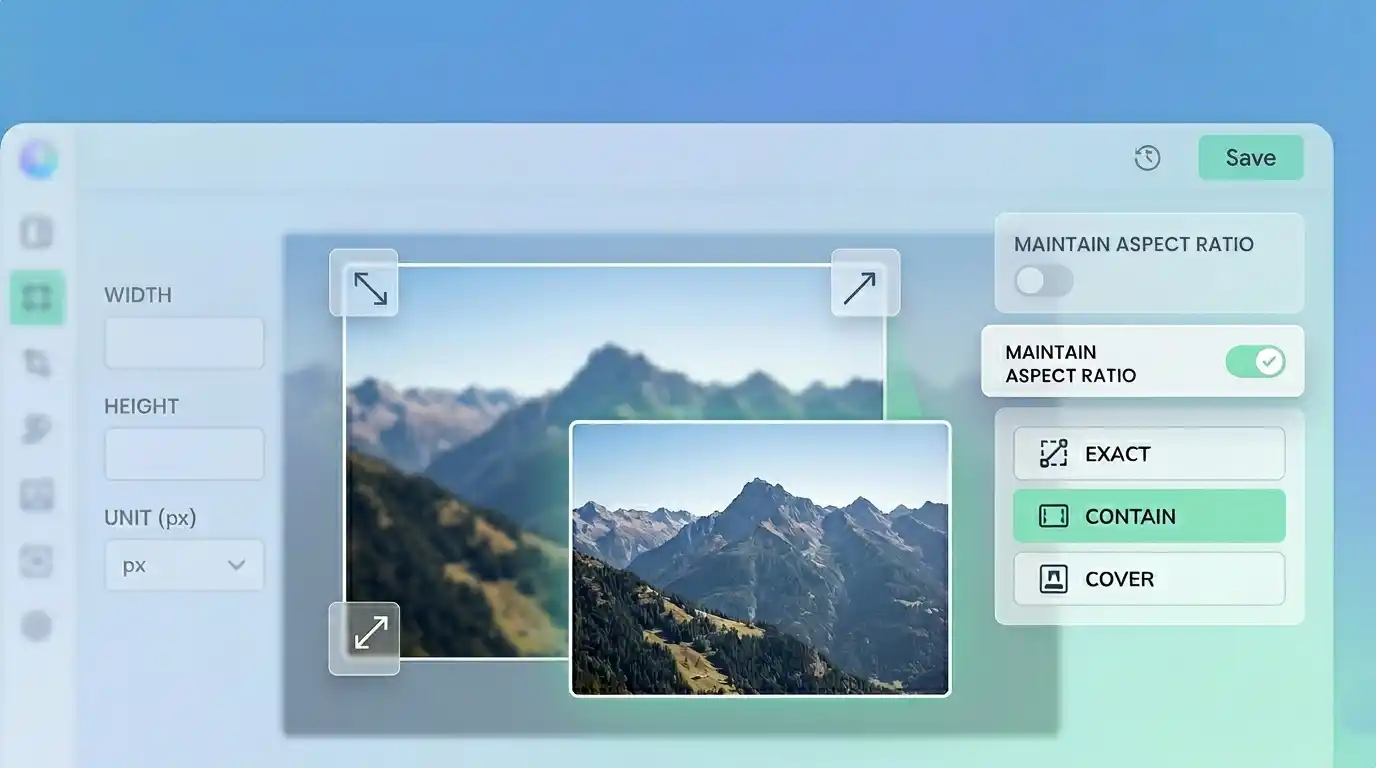
Resizing keeps the whole image but changes its dimensions.
That difference matters. If the subject is too small inside the frame, resizing will not fix it. You will just end up with the same bad composition at a different size.
If you only need the image to fit a layout better, crop first. If the dimensions are still too large after that, use an Image Resizer. That order usually makes more sense than resizing a badly framed image and dealing with the composition later.
When Cropping Is the Right Move
Cropping is worth doing when:
- the subject is lost inside too much background
- a blog or card layout needs a cleaner focal point
- a banner or thumbnail has the wrong shape
- a screenshot includes unnecessary empty space
- a social media image needs a fixed aspect ratio
I use it constantly for thumbnails and tutorial assets. A screenshot can be technically correct and still look messy if there is too much dead space around the useful part.
The Best Part of Online Cropping Is Speed
For quick work, browser-based cropping is hard to beat.
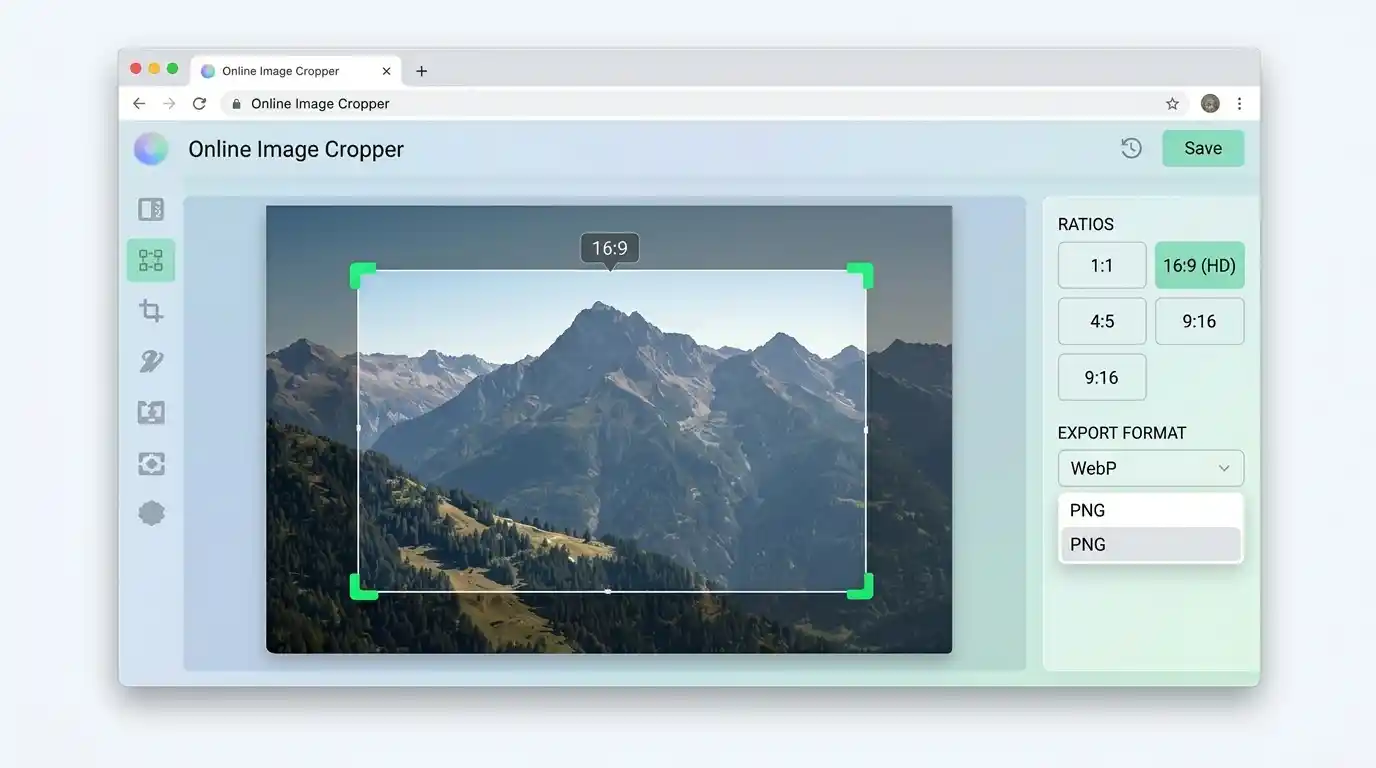
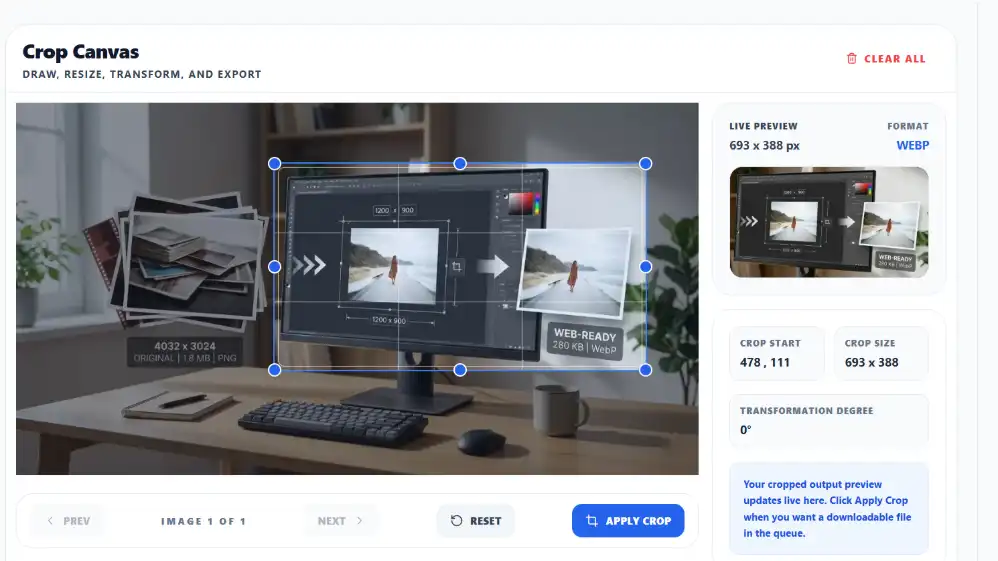
Upload the image, drag the crop area, choose a ratio if you need one, preview it, and export. No install. No huge editor. No mystery sync process. If the tool is built well, the workflow feels almost disposable, which is exactly what you want for small jobs.
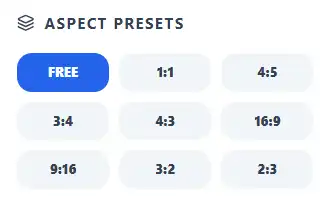
This cropper supports JPG, PNG, and WebP, plus fixed aspect ratios like 1:1, 4:5, 16:9, 9:16, and more. That covers most real web and social use without turning the interface into a design app.
How to Crop an Image Online
The workflow is simple, but there are still a few places people make the result worse than it needed to be.
Upload the image. Drag the crop box over the part you actually want. If you need a specific layout shape, pick an aspect ratio before you spend too much time nudging the frame. Then preview the output and export it in the format that makes sense.
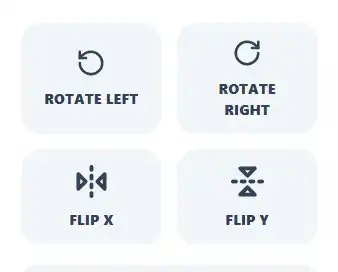
This tool also lets you rotate or flip the image before export, which is useful when the crop is right but the orientation is not. That saves a round trip through another editor for basic cleanup.
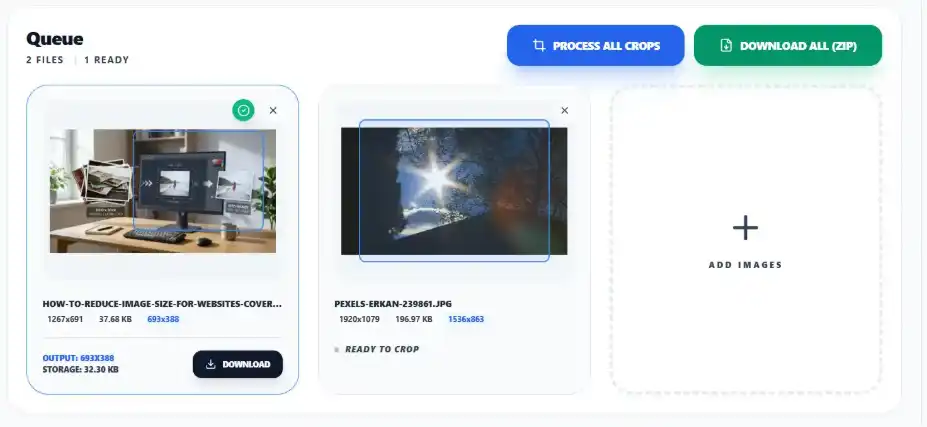
This tool also allows you to apply and process crop for multiple images with navigation control and batch processing.
Pick the Ratio Before You Get Too Precious
This is one of those boring habits that saves time.
If the final image is meant for a square card, pick 1:1 early. If it is heading to a blog banner or wide cover area, test 16:9. If it is meant for a portrait-style social layout, 4:5 or 9:16 usually gets you closer.
People often crop freehand first, then realize later the layout wants a fixed shape and they have to redo the framing. Better to lock the ratio up front if the destination is already known.
Free Crop Is Fine, but Fixed Ratios Are Safer
I like free crop when I am trimming screenshots or removing obvious junk around an image.
For anything going into a template, grid, hero slot, or social post, fixed ratios are usually safer. They make the output more predictable. You do not want a card system trying to crop your crop a second time.
A square crop can make a messy product image feel intentional. A 16:9 crop can rescue a wide banner from feeling random. A 4:5 crop is usually better than guessing when the image is headed to a portrait-heavy feed.
Cropping a Screenshot Is Not the Same as Cropping a Photo
Photos are forgiving. Screenshots are not.
If you crop a photo slightly too tight, it can still work. If you crop a screenshot too tightly, you can easily cut off context, labels, or controls that actually mattered. I have done this more times than I want to admit with admin panel screenshots. The image looked cleaner, but the explanation around it suddenly made less sense because one tiny setting got pushed outside the frame.
For screenshots, crop with a bit more restraint. Remove junk, but keep enough surrounding context that the image still explains itself.
Rotate and Flip Only When They Help
This tool includes rotation and flip controls, which is handy, but I would still treat them as utility features, not creative ones.
Rotation helps when the source image comes in sideways or the composition works better at a different angle. Flipping is more niche, but useful when a layout feels visually backward or when you need to mirror something simple. I would not overuse either. Cropping usually does the heavy lifting.
Output Format Still Matters After Cropping
Cropping changes composition, not file efficiency.
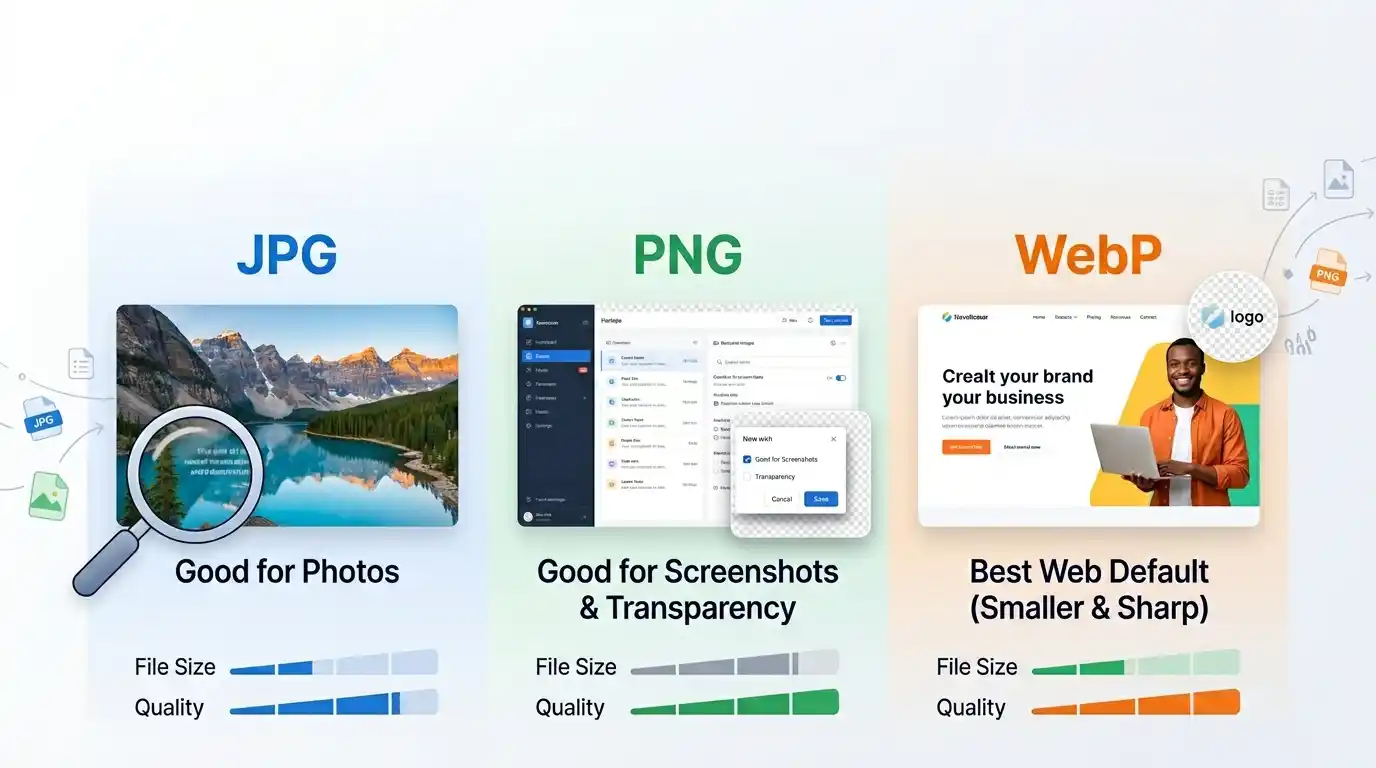
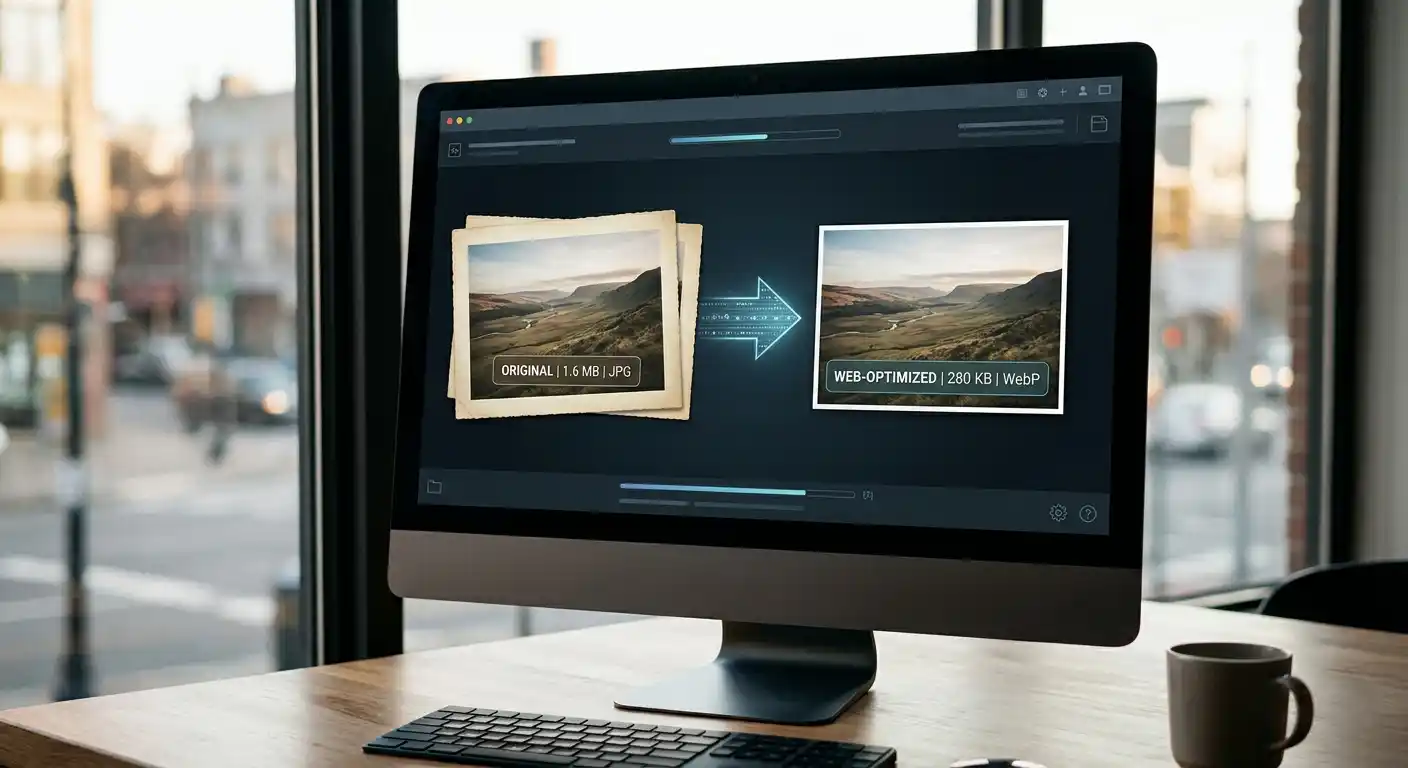
If the final image is a photo for a website, WebP is often the best format to test first. If the image is a screenshot or needs transparency, PNG may still be the better choice. If you want broad compatibility and the image is just a normal photo, JPG is still perfectly workable.
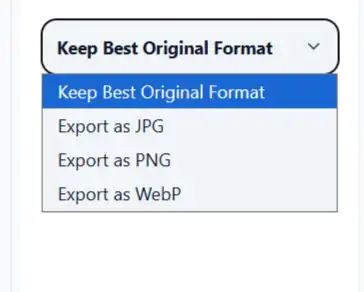
This tool lets you export as original, JPG, PNG, or WebP, which is exactly the kind of practical flexibility I want in a cropper. If the image still needs more optimization after that, finish with the Image Compressor or convert formats with the Image Converter.
Live Preview Prevents a Lot of Dumb Mistakes
One thing I like in cropping tools is a real preview before download. Not just the crop rectangle sitting on top of the source image, but the actual output view.
That catches issues fast:
- the crop is tighter than you thought
- the composition feels awkward at the final ratio
- the rotated version looks worse than expected
- the subject is too close to the edge
- the screenshot lost important context
This cropper updates the output preview live, which is the difference between “looks right” and “actually is right.”
A Few Cropping Mistakes That Keep Showing Up
The first is cropping too tightly just because the tool makes it easy. Tight crops can look dramatic for five seconds and then start feeling cramped.
The second is ignoring the destination layout. A crop that looks good on its own can still fail once it is placed inside a wide hero, narrow card, or social template.
The third is using free crop for everything. That usually leads to inconsistent image shapes across a site, which makes a design feel sloppier than it needs to.
The fourth is forgetting that crop decisions affect what comes next. Once the frame is right, you may still need resizing or compression before publishing.
What I’d Actually Do
If I am cropping for a website, I usually make a few boring decisions on purpose:
- choose the final ratio early
- crop for the focal point, not for maximum image area
- leave a little breathing room unless it is a thumbnail
- export to WebP for normal web photos
- keep PNG for screenshots if text clarity matters
That sounds basic, but it avoids most of the ugly outcomes.
Pro Tip
Crop for the layout, not for the original image. The version that looks “nicest” in isolation is not always the one that works best once it is dropped into a card, banner, or article template.
Try the tool
Crop the part that actually matters
Crop JPG, PNG, and WebP images right in your browser with fixed aspect ratios, live preview, and export options. Your data never leaves your device, so you can clean up images privately in a few clicks.
Open Image Cropper