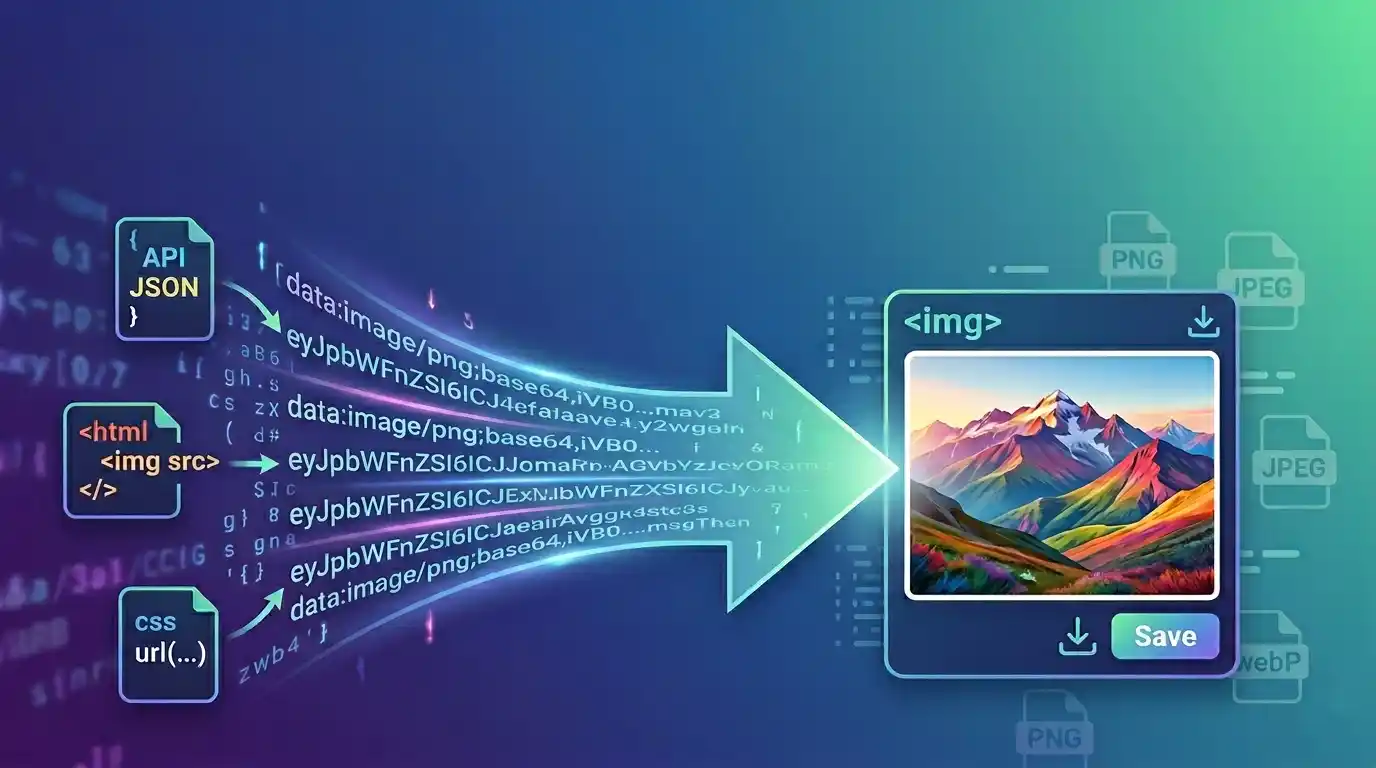
Not every image arrives as an image file.
Sometimes it shows up as a long string of Base64 text inside a JSON response. Sometimes it is embedded in a Data URL. Sometimes it is sitting inside an HTML img tag or buried in a CSS url(...) value. At that point, the problem is no longer “how do I display this image?” It becomes “how do I turn this back into a normal image I can preview and save?”
That is exactly what Base64 to image conversion does.
It takes encoded image data and decodes it back into a usable image file. If you are handling inline assets, API responses, email templates, exported code snippets, or copied image data from a tool, knowing how to do this saves time.
Quick summary
- Base64 to image means decoding encoded image text back into a real image.
- The input may come as raw Base64, a Data URL, HTML, CSS, or JSON.
- The goal is usually to preview the image and save it as a normal file.
- This is useful for developers, testers, and anyone working with embedded image data.
- A browser-based Base64 to Image Converter is the easiest option for most people.
What Base64 to image actually means
Base64 is a text-based representation of binary data. When an image is converted to Base64, the visual file is transformed into encoded text.
Going from Base64 to image simply reverses that process.
You take the encoded string, decode it, and reconstruct the original image data so the browser or your system can treat it like an actual image again. Once decoded, the image can be previewed, downloaded, or used elsewhere as a file.
This is not compression. It is not resizing either. It is decoding.
Decoding restores the original data, but it does not improve image quality. If the Base64 string is incomplete or corrupted, the output image will also be broken.
Where Base64 image data usually comes from
People usually encounter Base64 image data in a few common places:
- copied Data URLs
- HTML image tags
- CSS background-image code
- JSON API payloads
- raw Base64 strings from generators or converters
- stored inline image data in apps or emails
That variety matters because not every tool handles the same kinds of input well. Some expect only raw Base64. Others are more flexible and can extract image data even when it is wrapped inside markup or structured content.
That makes the workflow easier when you do not want to manually clean the input before decoding it.
Common input types
| Input Type | What It Looks Like | Typical Use |
|---|---|---|
| Raw Base64 | Long encoded text only | Direct copied payload |
| Data URL | data:image/png;base64,... |
Browser-ready inline image |
| HTML | <img src="data:image/..."> |
Embedded markup |
| CSS | url("data:image/...") |
Background image styles |
| JSON | Object containing Base64 or Data URL | API or app data |
This is one reason the topic is more practical than it first sounds. The challenge is often not decoding alone. It is decoding from the format you actually have.
Why someone would convert Base64 back to an image
There are several normal reasons:
- you want to save the image as a file
- you need to preview what the Base64 actually contains
- you are extracting images from code or API output
- you want to reuse the image somewhere else
- you need a cleaner, downloadable version of inline image data
For example, if someone sends you a Data URL instead of a file attachment, decoding it back to an image is the fastest way to inspect and keep it.
The easiest way to convert Base64 to an image
For most people, the easiest method is to use a browser-based Base64 to Image Converter.
That approach is usually simpler than writing custom code because you can:
- paste the input directly
- decode it instantly
- preview the resulting image
- confirm the format
- download the image file
It is especially helpful when the input is not clean raw Base64 and instead comes from HTML, CSS, JSON, or a full Data URL.
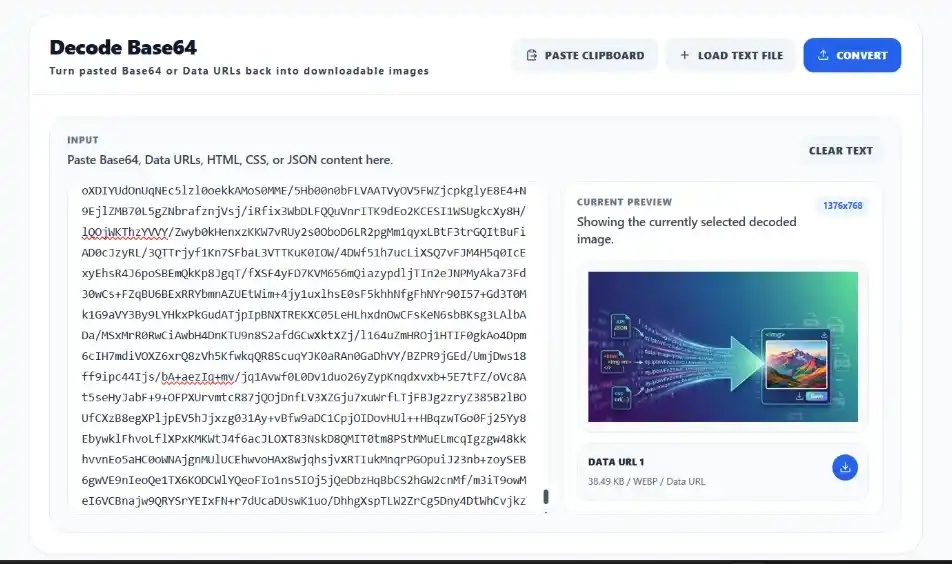
Here is an example of decoding Base64 into an image using SolutionBazz Base64 to Image Decoder tool:
How the process works
In simple terms, the workflow looks like this:
- Paste the Base64-related content.
- Let the tool detect the actual image data.
- Decode the text back into image bytes.
- Preview the result.
- Download the image file.
That is all you are really doing, even if the original input looks messy.
A good decoder can save time by figuring out whether the text came from a Data URL, markup, CSS, or structured content instead of forcing you to manually strip everything down first.
What happens when the input is a Data URL
A Data URL already contains useful information about the image, including its MIME type.
It usually looks something like this:
data:image/png;base64,iVBORw0KGgoAAA...
In that format, the decoder can often identify the file type directly, which makes it easier to reconstruct the image as PNG, JPEG, WebP, GIF, or another supported format.
This is more reliable than guessing from raw Base64 alone.
What happens when the input is raw Base64
Raw Base64 is just the encoded content without the helpful prefix.
That means the decoder may need a fallback assumption to rebuild the file correctly. Some tools default to a standard image type when the MIME type is missing. That is useful, but it is also why Data URLs are a little cleaner when you already have them.
For a normal user, the main takeaway is simple: raw Base64 works, but Data URLs often carry more context.
Why HTML, CSS, and JSON support matters
This is where a tool becomes much more practical.
In real usage, people often do not copy a perfect Base64 string. They copy a larger block of content that contains the image inside it. That might be:
- an HTML <img> tag
- a CSS class with background-image
- a JSON response with one or more encoded image values
If the decoder can detect and extract images from those formats directly, the workflow is much smoother. You paste once and decode, instead of manually hunting through the content first.
That is particularly useful for debugging, development, and recovery tasks.
Can you decode multiple images at once?
Sometimes yes, and that can matter more than you expect.
If the input includes several embedded images, decoding them one by one is tedious. A better workflow is to detect each image, preview them separately, and download them individually or together.
That is helpful when:
- parsing a JSON payload with multiple images
- extracting several Data URLs from copied content
- recovering image assets from code snippets
- saving multiple embedded images in one session
For users dealing with more than one encoded image, batch handling is not a luxury. It is the difference between a smooth tool and a frustrating one.
Common mistakes
A few mistakes come up often:
- pasting incomplete Base64
- copying only part of a Data URL
- assuming Base64 always includes the file type
- confusing Base64 decoding with compression
- expecting broken or invalid strings to produce clean images
- using the wrong tool for wrapped input like HTML or JSON
Most decoding failures happen because the input is incomplete, malformed, or copied with extra characters that break the data.
Checklist before saving the decoded image
- Does the input include the full Base64 content?
- Is it raw Base64, a Data URL, HTML, CSS, or JSON?
- Can the tool preview the decoded result?
- Does the output file type look correct?
- Are you saving one image or several?
This kind of quick check helps avoid bad exports and unnecessary retries.
Final takeaway
Base64 to image conversion is the process of decoding encoded image text back into a real image file you can preview and save.
That sounds technical, but the practical use is straightforward. If you are dealing with raw Base64, Data URLs, HTML snippets, CSS image code, or JSON payloads, you often just need a reliable way to extract the image and download it properly. In those cases, a browser-based convert Base64 to image tool is the simplest path because it removes the manual cleanup work and gives you a usable image quickly.
Try the tool
Turn Base64 back into a real image
Paste raw Base64, a Data URL, or image code from HTML, CSS, or JSON and decode it into a downloadable image in your browser. Your data stays on your device, so the process is private and quick.
Open Base64 to Image Converter