Sometimes you do not want an image file. You want the image as text.
That usually happens when you are embedding a small asset directly into HTML, dropping an inline background into CSS, testing an API payload, or generating a quick Data URL without dealing with separate file hosting. In those moments, converting an image to Base64 becomes useful.
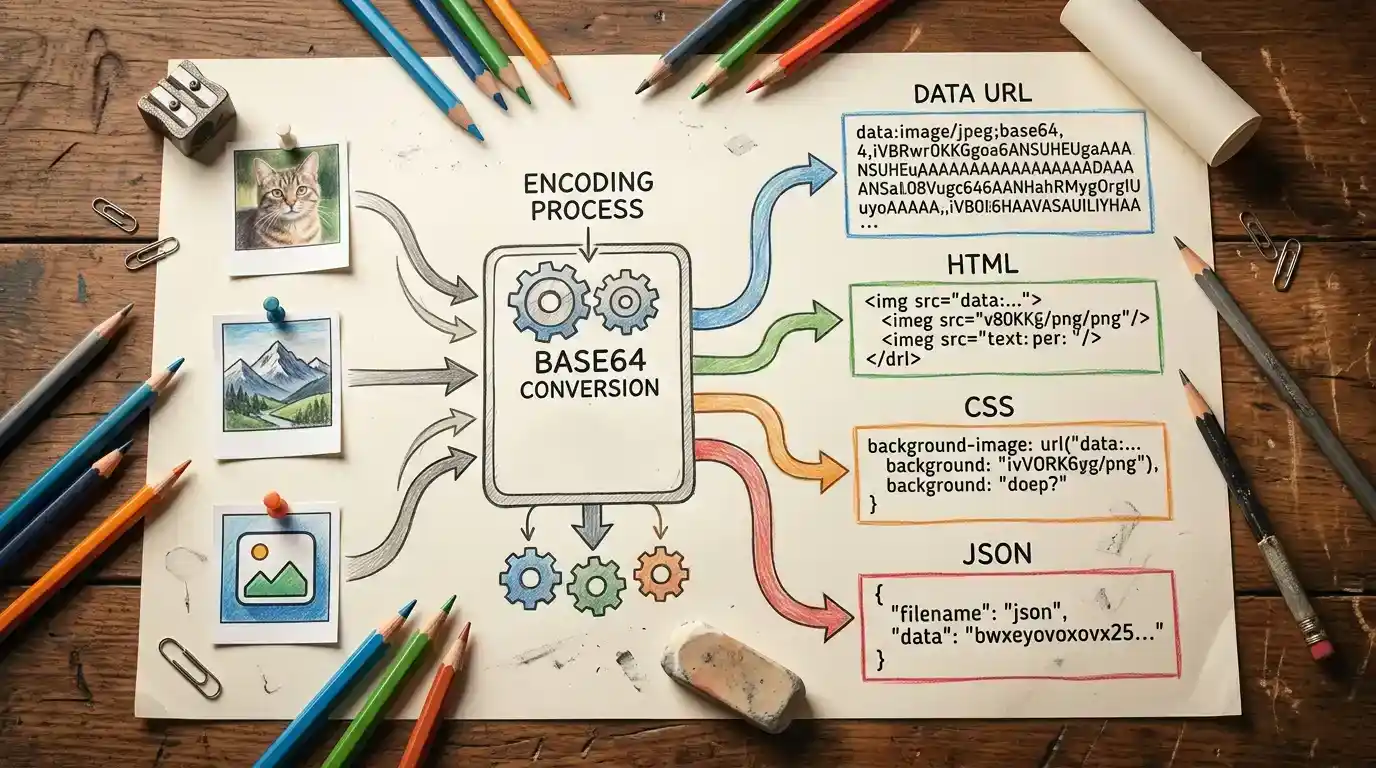
The process itself is simple. You take an image file like JPG, PNG, or WebP and encode it into a text string. That string can then be reused in different formats depending on what you need: raw Base64, a browser-ready Data URL, an HTML image tag, a CSS background declaration, or even a JSON object.
If you are just trying to get this done quickly, the easiest option is to use an Base64 image converter tool that handles the encoding in your browser and gives you the output format you actually need.
Quick summary
- Base64 turns image data into text.
- It is useful for inline embeds, testing, and certain development workflows.
- You can generate different kinds of output from the same image.
- Data URL, HTML, CSS, and JSON outputs are all practical variations of the same encoded image.
- Base64 is useful, but it is not the same as image compression.
- For large content images, a normal image file is often still the better choice.
What it means to convert an image to Base64
An image file is normally stored as binary data. That is fine when the browser loads an image from a file path or a URL. But some workflows need the image represented as plain text instead.
Base64 is an encoding method that converts binary data into text using a limited set of characters. After conversion, the image is no longer handled as a typical standalone file in that moment. It becomes a long text string that can be pasted into code, markup, JSON, or other text-based systems.
That is the basic idea.
You are not changing the visual image itself. You are changing how the image is packaged.
Why people convert images to Base64
This is not something most people need for every image on a website. It is more specific than that.
Base64 is commonly useful when you want to:
- embed a small image directly into HTML
- use an inline image inside CSS
- generate a Data URL for fast testing
- send image data through JSON or APIs
- keep everything in one portable chunk of text
- avoid separate file handling for a quick prototype
That is why the topic shows up often in development work. It solves an embedding and transfer problem more than a design problem.
What Base64 Output Can Look Like
Not every Base64 workflow ends with the same format. That is where many beginner guides stop too early.
Raw Base64 is just the encoded text by itself.
A Data URL adds the MIME type and prefix so browsers can understand it immediately.
HTML output wraps the Data URL inside an <img> tag.
CSS output wraps it inside a background-image declaration.
JSON output can package the image data together with metadata such as file name, MIME type, dimensions, and size.
That means “convert image to Base64” is often shorthand for a few different final outputs, depending on where you want to use the result.
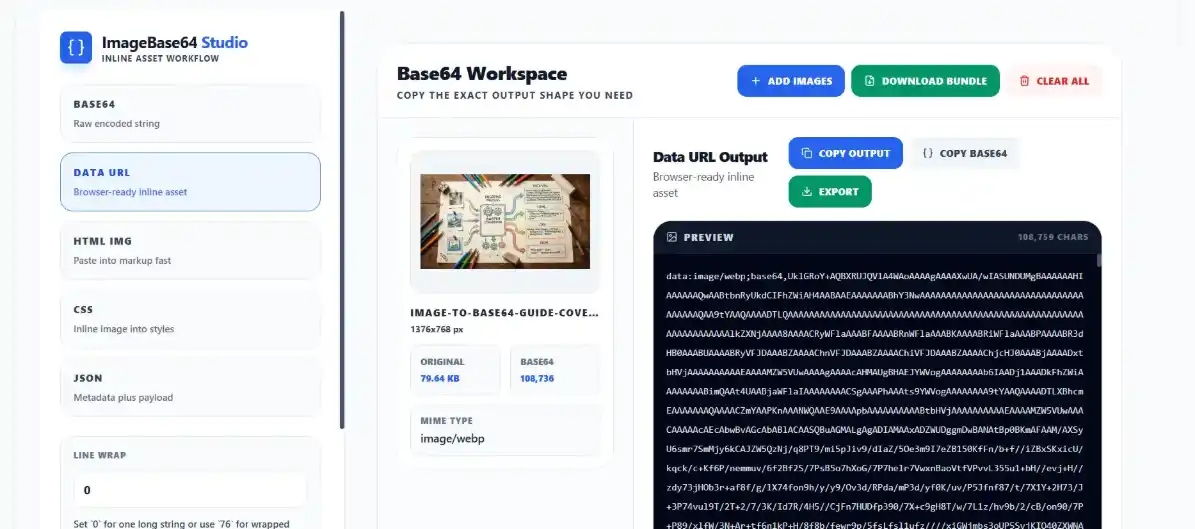
Below is an example of how a Base64 converter works in a browser:
The easiest way to convert an image to Base64
For most users, the easiest method is a browser-based tool.
If you use an online Base64 encoder, the workflow is usually straightforward:
- Upload one or more image files.
- Let the tool encode them.
- Choose the output format you want.
- Copy or export the result.
That is simpler than writing custom code when your goal is just to get usable output fast.
A good converter becomes even more useful when it supports more than one output mode, because you do not always need only raw Base64. Sometimes what you really want is a ready-to-paste HTML tag or a CSS snippet.
A practical example
Say you have a small PNG icon and want to use it inside markup without linking to a separate file.
Instead of working only with the raw encoded string, you may prefer a ready-made output like this:
<img src="data:image/png;base64,..." alt="Example image" />
If the same image is intended for CSS, the output could look more like this:
.icon-example {
  background-image: url("data:image/png;base64,...");
  background-size: cover;
  background-position: center;
}
And if you are sending image data through structured output, a JSON version may make more sense.
This is where tool design matters. Converting the image is only part of the task. Getting the result in the right format saves time.
Common output formats
| Output Type | Best For | What You Get |
|---|---|---|
| Base64 | Raw encoded data | Just the text string |
| Data URL | Browser-ready inline use | Full data:image/...;base64,... string |
| HTML | Fast markup use | Ready-to-paste <img> tag |
| CSS | Inline styling | background-image snippet |
| JSON | Structured development use | Metadata plus encoded payload |
This is one of the reasons the topic deserves a practical explanation instead of a one-line answer.
When Base64 is useful
Base64 is helpful when convenience and portability matter more than keeping image delivery fully separate.
Good use cases include:
- small UI icons
- quick demos
- email markup experiments
- API testing
- inline assets for prototypes
- development workflows where text output is easier to handle than files
It is also useful when you want a file converted quickly and you do not want to manually build the surrounding code yourself.
For example, if your tool already gives you HTML, CSS, and JSON output after upload, that removes several manual steps.
When Base64 is not the best choice
This part matters just as much.
Base64 is not automatically the best approach for normal web publishing. It is usually not ideal for:
- large hero images
- blog cover images
- product galleries
- image-heavy content pages
- situations where browser caching matters a lot
- large assets repeated across many pages
In those cases, regular image files are usually cleaner and easier to scale.
So the useful mindset is not “Base64 is better.” It is “Base64 is useful for specific jobs.”
Does Base64 reduce image size?
Usually no.
This is one of the most common misunderstandings.
Base64 is an encoding method, not a compression method. In many cases, Base64 actually increases the amount of data compared with the original binary file. So if your main goal is smaller image size, you should think about compression and format optimization first, not Base64 conversion.
That distinction is important because people often mix together:
- converting an image
- compressing an image
- resizing an image
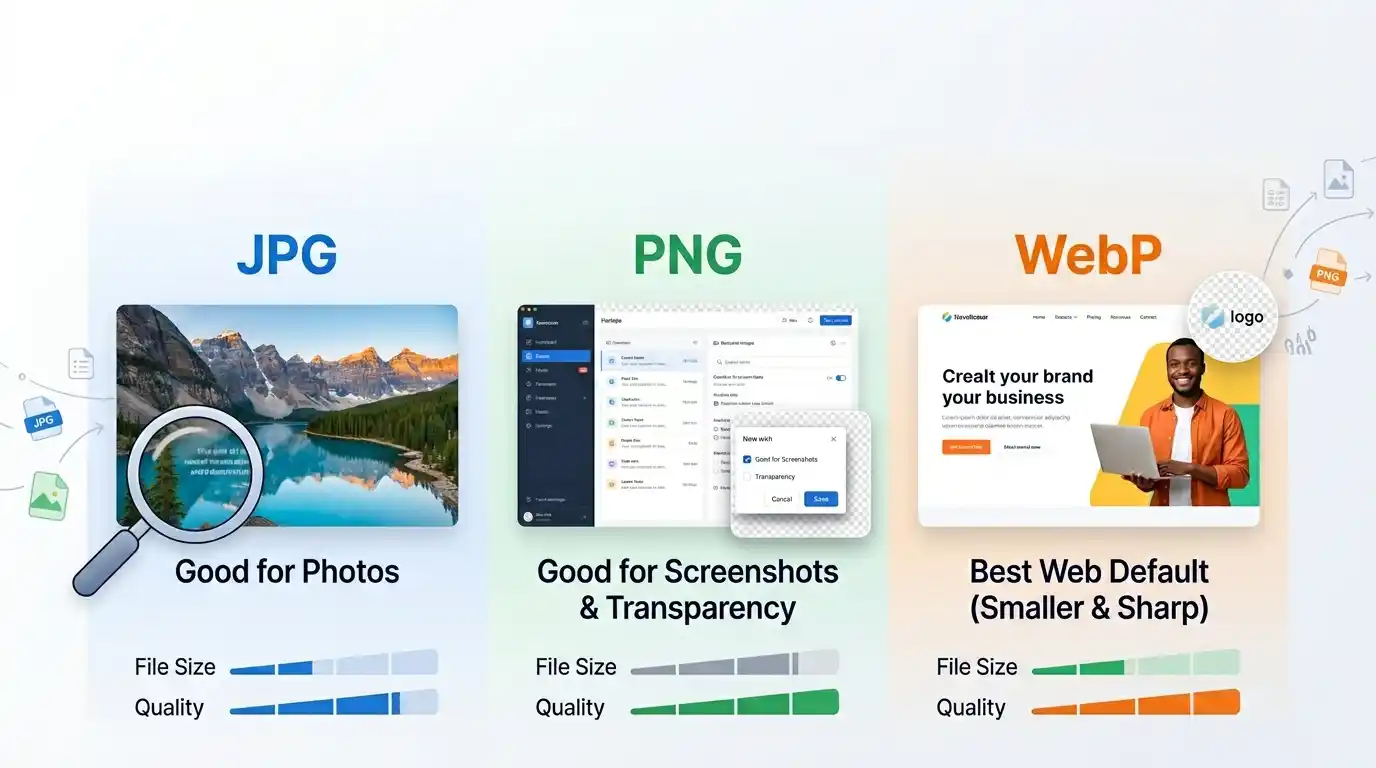
- changing the image format
Those are related tasks, but they are not the same.
Base64 vs normal image file
| Option | Better For | Tradeoff |
|---|---|---|
| Normal image file | Most published website images | Separate file request |
| Base64 output | Inline use and encoded transport | Larger text output and less elegant for large assets |
This is why Base64 is best treated as a workflow tool, not a universal publishing format.
A beginner-friendly workflow
If your goal is simply to convert an image and use the result properly, a good workflow looks like this:
- Choose the image file you want to encode.
- Decide where the result will be used.
- Convert it to Base64.
- Select the correct output format.
- Copy or export the result.
- Paste it into your project, markup, or payload.
That middle step matters more than it seems. If you know whether the result is going into HTML, CSS, JSON, or a browser preview, the right output becomes obvious.
Common mistakes
A lot of Base64 confusion comes from using it for the wrong reason.
Common mistakes include:
- assuming Base64 compresses images
- using Base64 for large content images
- copying raw Base64 when a Data URL is actually needed
- forgetting that HTML or CSS output may be more useful than the raw string
- embedding too many heavy Base64 images into one page
- treating Base64 as a replacement for all normal image files
These are easy to avoid once you understand the purpose of the conversion.
Why tool-based conversion is often better
You can absolutely convert images to Base64 with code, and in some cases that is the right approach. But for everyday usage, a purpose-built tool is usually faster and less error-prone.
A browser-based Image to Base64 Converter is especially practical because it lets you:
- upload images directly
- convert them without extra setup
- preview the kind of output you need
- copy the result instantly
- export the output for later use
That is much more convenient than manually building strings every time, especially when you are working with multiple images or switching between raw Base64, Data URL, HTML, CSS, and JSON formats.
Checklist before converting
- Do you actually need the image as text?
- Will the result be used in HTML, CSS, JSON, or plain Base64?
- Is the image small enough for inline use?
- Would a regular file URL be simpler?
- Are you converting for portability, not compression?
Those questions help keep the workflow practical.
Final takeaway
Converting an image to Base64 means turning image data into text so it can be embedded, transferred, or reused in text-based contexts.
That makes it useful for things like Data URLs, HTML image tags, CSS background snippets, and JSON payloads. It is not a replacement for image compression, and it is not always the right solution for normal website images. But when you need inline output or text-friendly image data, it does the job well.
If the goal is speed and convenience, using SolutionBazz Image to Base64 Converter is usually the simplest route. It keeps the process practical and gives you the exact output format you need instead of just a long string you still have to reshape yourself.
Try the tool
Convert images to Base64, HTML, CSS, or JSON
Turn JPG, PNG, and WebP images into raw Base64, browser-ready Data URLs, HTML image tags, CSS background code, or structured JSON in a few clicks. Your files stay on your device, so the conversion stays private and fast.
Open Image to Base64 Converter