Posting a great image with the wrong dimensions is one of the easiest ways to make polished content look careless.
You upload a cover image that looked perfect in your editor, then part of the text disappears on mobile. A portrait post gets cropped in the feed. A banner looks sharp on desktop but awkward on a tablet. None of this usually happens because the design was bad. It happens because social platforms display the same image differently across placements and devices.
That is why “best size” matters more than “good enough.”
Correct image size also helps reduce file size, which improves loading speed and overall performance on social platforms.
If you are looking for updated social media image sizes in 2026, this guide gives you the most reliable dimensions for major platforms. This guide also works if you are comparing recommended image sizes for social media or looking for the best image dimensions for Instagram, Facebook, YouTube, and similar platforms.
The dimensions below were checked on May 6, 2026. A few platforms publish exact recommendations clearly. Others are less direct, so where needed I’m using the current platform guidance plus the most practical export sizes creators rely on.
Quick summary
If you only want the short version, start here:
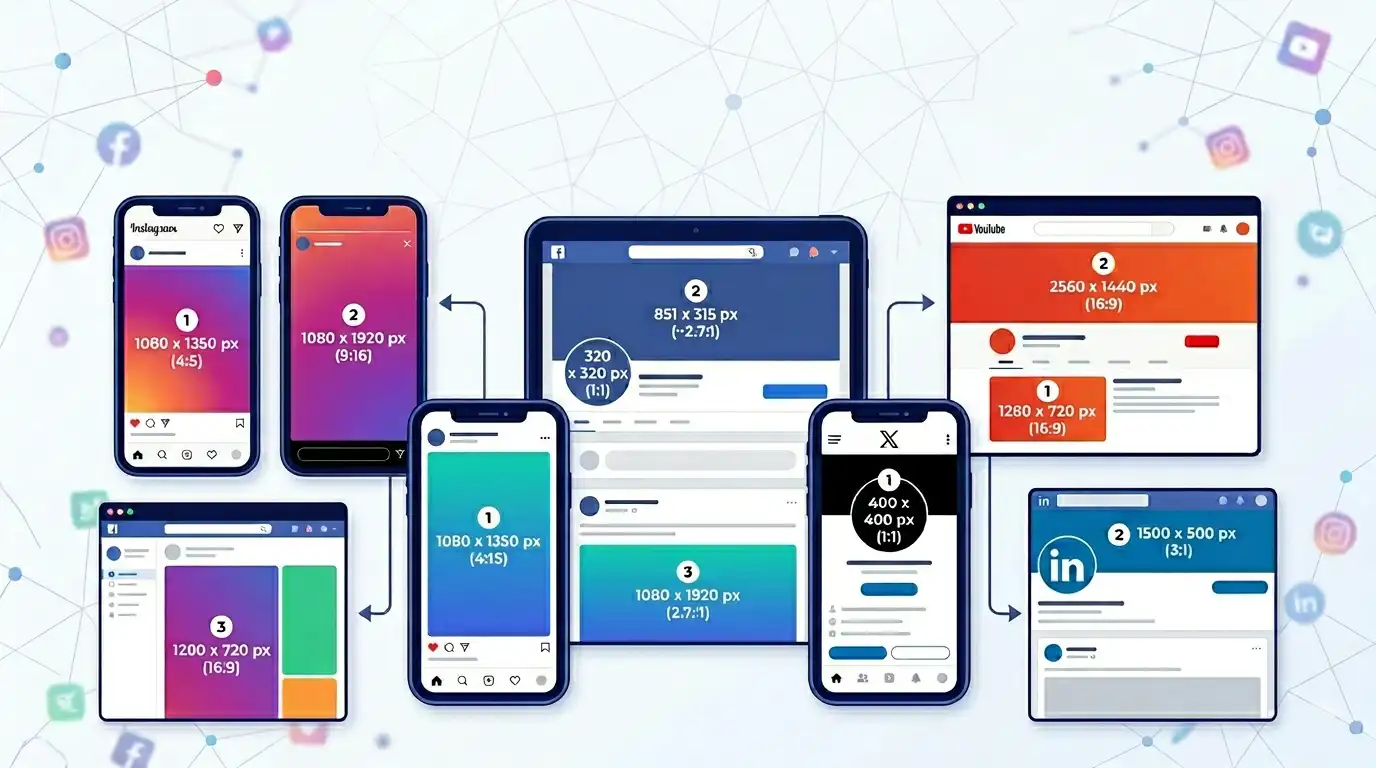
- Instagram feed: 1080 x 1350 px is the safest default
- Instagram Stories/Reels: 1080 x 1920 px
- Facebook Page profile: 320 x 320 px minimum, displayed smaller
- Facebook Page cover: 851 x 315 px
- YouTube banner: 2560 x 1440 px
- YouTube thumbnail: 1280 x 720 px
- YouTube profile: square image
- X profile: 400 x 400 px
- X header: 1500 x 500 px
- LinkedIn Page logo: 400 x 400 px
- LinkedIn Page cover: 4200 x 700 px
If you want one practical rule that prevents a lot of mistakes, it is this: design for the recommended canvas, but keep important text and faces away from the edges.
Social media image size reference
| Platform | Placement | Best Size | Aspect Ratio |
|---|---|---|---|
| Feed portrait | 1080 x 1350 px | 4:5 | |
| Feed square | 1080 x 1080 px | 1:1 | |
| Feed landscape | 1080 x 566 px | 1.91:1 | |
| Story / Reel | 1080 x 1920 px | 9:16 | |
| Page profile | 320 x 320 px | 1:1 | |
| Page cover | 851 x 315 px | ~2.7:1 | |
| YouTube | Channel banner | 2560 x 1440 px | 16:9 |
| YouTube | Thumbnail | 1280 x 720 px | 16:9 |
| X | Profile photo | 400 x 400 px | 1:1 |
| X | Header image | 1500 x 500 px | 3:1 |
| Page logo | 400 x 400 px | 1:1 | |
| Page cover | 4200 x 700 px | 6:1 |
That table is the practical starting point. The details below matter because some of these images get cropped, masked into circles, or displayed differently across placements.
Best Instagram image sizes
Instagram is one of the easiest places to make avoidable sizing mistakes because the platform supports several shapes at once.
For normal feed posts, the most dependable default is still 1080 x 1350 px. That 4:5 portrait format takes up more screen space in the feed than square or landscape posts, and it usually works well for photos, graphics, quotes, and educational carousels.
Here is the practical breakdown:
- Portrait feed post: 1080 x 1350 px
- Square feed post: 1080 x 1080 px
- Landscape feed post: 1080 x 566 px
- Stories: 1080 x 1920 px
- Reels: 1080 x 1920 px
- Reels cover: 420 x 654 px recommended cover size
Instagram officially documents that Reels can be uploaded between 1.91:1 and 9:16, with a minimum resolution of 720 px. In practice, if you want clean full-screen vertical output, 1080 x 1920 px is the safe choice.
One thing worth noting: Instagram also added support for 3:4 photos in 2025. That means if you work from phone photos, you now have a little more flexibility than the old square-only mindset suggested. Even so, for predictable feed design, 1080 x 1350 px remains the easiest recommendation for most article readers.
Best Facebook image sizes
Facebook is less about one universal image size and more about choosing the right format for the placement.
For a Facebook Page:
- Profile picture: best quality at 320 x 320 px
- Cover photo: 851 x 315 px for fastest loading, at least 400 x 150 px
- Group cover photo: 1640 x 856 px recommended
The profile image is displayed at different sizes depending on device, and it is cropped to a circle. The cover image is even trickier because the left side may be partially covered by the profile picture, and mobile cropping can differ from desktop.
That means the real lesson on Facebook is not only size. It is layout discipline. Do not place important text in the far left or too close to the edges.
Best YouTube image sizes
YouTube branding images need more breathing room than many people expect.
The most important one is the channel banner. YouTube recommends at least:
- Channel banner: 2560 x 1440 px
- Thumbnail: 1280 x 720 px
If you go smaller, the banner can start falling apart across devices. If you put text too close to the outer edges, parts of it may not survive different displays.
For the profile image, YouTube’s help guidance is simpler:
- Profile picture: upload a square or round image
In practice, keeping it square at a high resolution is the easiest move, especially if it is a logo. The main thing is legibility at small sizes, since the profile image appears in comments, channel pages, and video surfaces.
The thumbnail is just as important. It is one of the most visible image assets on YouTube, and 1280 x 720 px should be treated as the standard working size.
Best X image sizes
X is relatively straightforward compared with some other platforms.
Recommended sizes are:
- Profile photo: 400 x 400 px
- Header image: 1500 x 500 px
The catch is the crop. X notes that even when you use the recommended header size, parts of the top and bottom may still be cropped depending on browser and monitor size. So if the header includes text, keep it centered and avoid placing critical details near the top or bottom edge.
That makes X a good example of a broader rule: exact canvas size helps, but safe content placement matters just as much.
Best LinkedIn image sizes
LinkedIn is more restrained visually, but the sizing still matters, especially for company branding.
For LinkedIn Pages, the current recommendations are:
- Logo image: 400 x 400 px recommended
- Cover image: 4200 x 700 px recommended
- Custom image for URL post previews: 1200 x 627 px at a 1.91:1 ratio
LinkedIn also warns that cover images may be adjusted depending on screen size, so large text near the edges is risky there too. If you are creating branded graphics, center the important information and give it room.
TikTok image and video sizes
TikTok does not publish as many detailed image guidelines as platforms like YouTube or Facebook, so most creators rely on proven vertical formats instead.
Its official help currently says profile photos must be at least 20 x 20 px, which is only a minimum requirement, not a practical design recommendation. For real-world use, you should still upload a clean square image at a much higher resolution so it looks sharp.
For vertical TikTok visuals, the most practical choice is the same one creators already use for Reels and Shorts:
- Vertical content: 1080 x 1920 px
That is the safe working canvas if you want cross-platform reuse. I’d treat that as a production recommendation rather than a TikTok-only official spec.
Why safe zones matter more than exact size
This is where a lot of social graphics quietly fail.
The canvas can be technically correct and still produce a bad result after upload. Platforms crop differently in feeds, banners, mobile previews, and profile displays. So if your most important text or subject sits too close to the outer edges, the image may still look broken even when the dimensions are right.
That is why safe zones matter so much.
Keep these away from the edges whenever possible:
- headlines
- logos
- faces
- product details
- calls to action
This matters most for banners, thumbnails, vertical graphics with text, and any design that will appear across more than one device size.
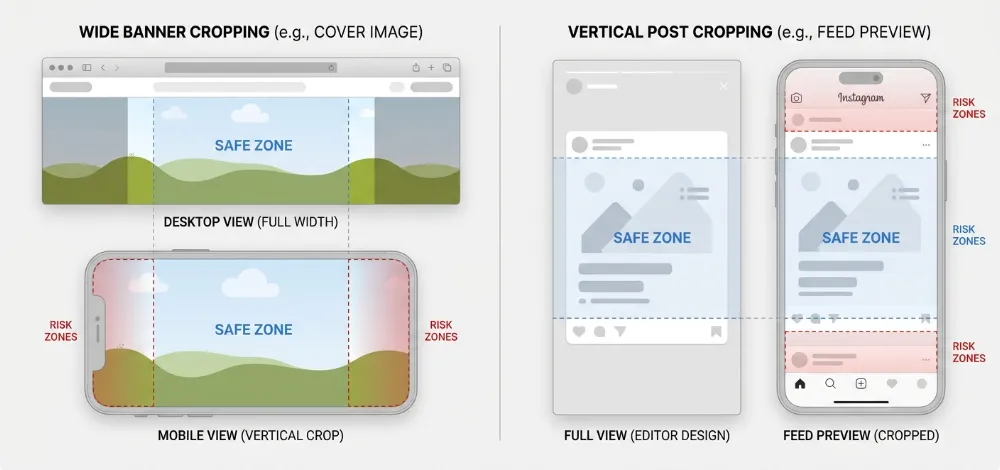
Safe zone example: why edges matter
Think about a banner or thumbnail as having a safer middle area and riskier outer edges.
The center area is usually the most reliable place for important content because it survives different device layouts more consistently. The top and bottom may get trimmed on some screens, while the far left or right may feel crowded or partially hidden depending on the platform.
That is why a design can look fine inside an editor and still perform badly after upload. The image is technically correct, but the placement of the content is not.
Common mistakes
- Designing a banner with text stretched across the full width
- Uploading square images everywhere out of habit
- Reusing one image across every platform without resizing
- Ignoring how mobile crops differ from desktop crops
- Putting key text too close to the top, bottom, or far sides
- Treating minimum size requirements as recommended size
These problems usually do not come from bad design taste. They come from skipping the platform-specific prep work.
How to resize images for social media without losing quality
Getting the correct dimensions is only part of the job. You also need to resize images without stretching or degrading quality.
A simple process usually works best:
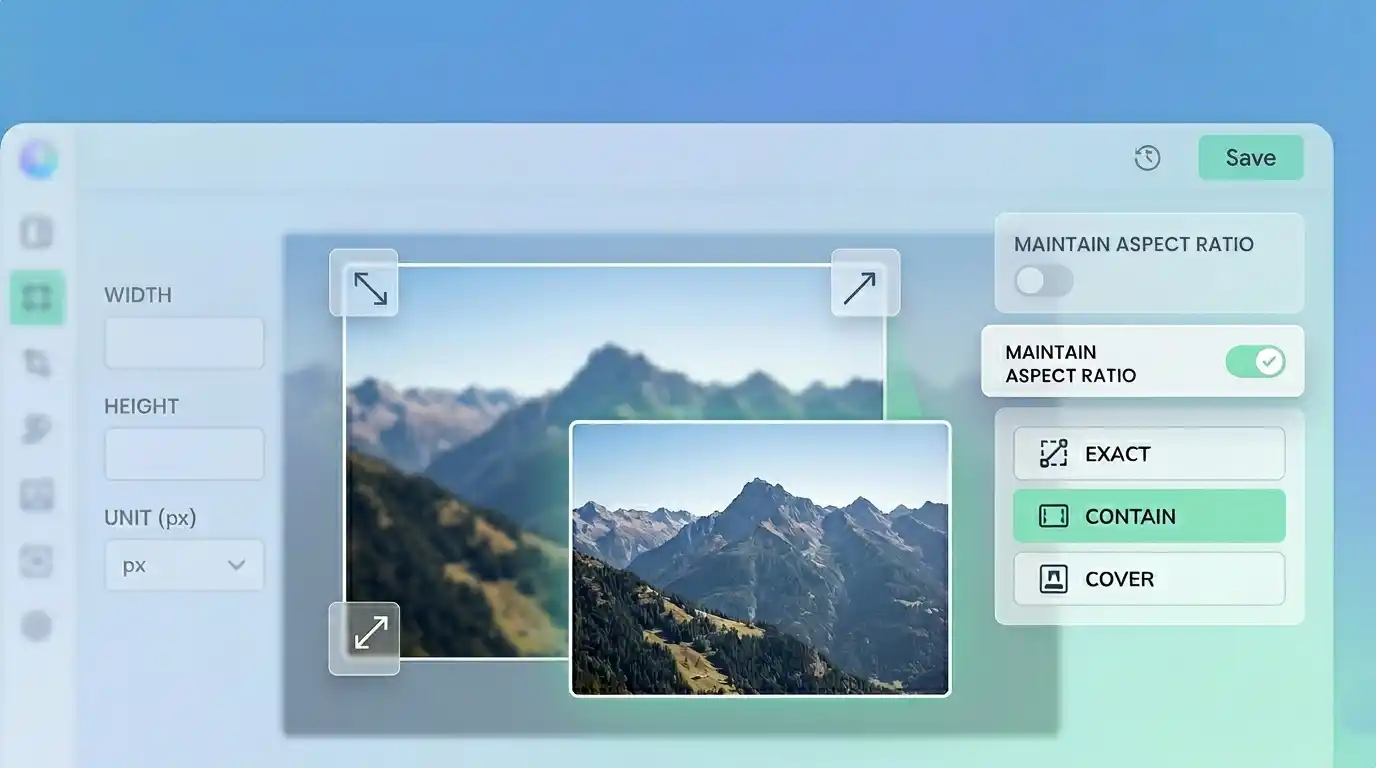
- Start with the correct aspect ratio, such as 4:5, 1:1, or 9:16
- Resize using a proper tool instead of cropping randomly
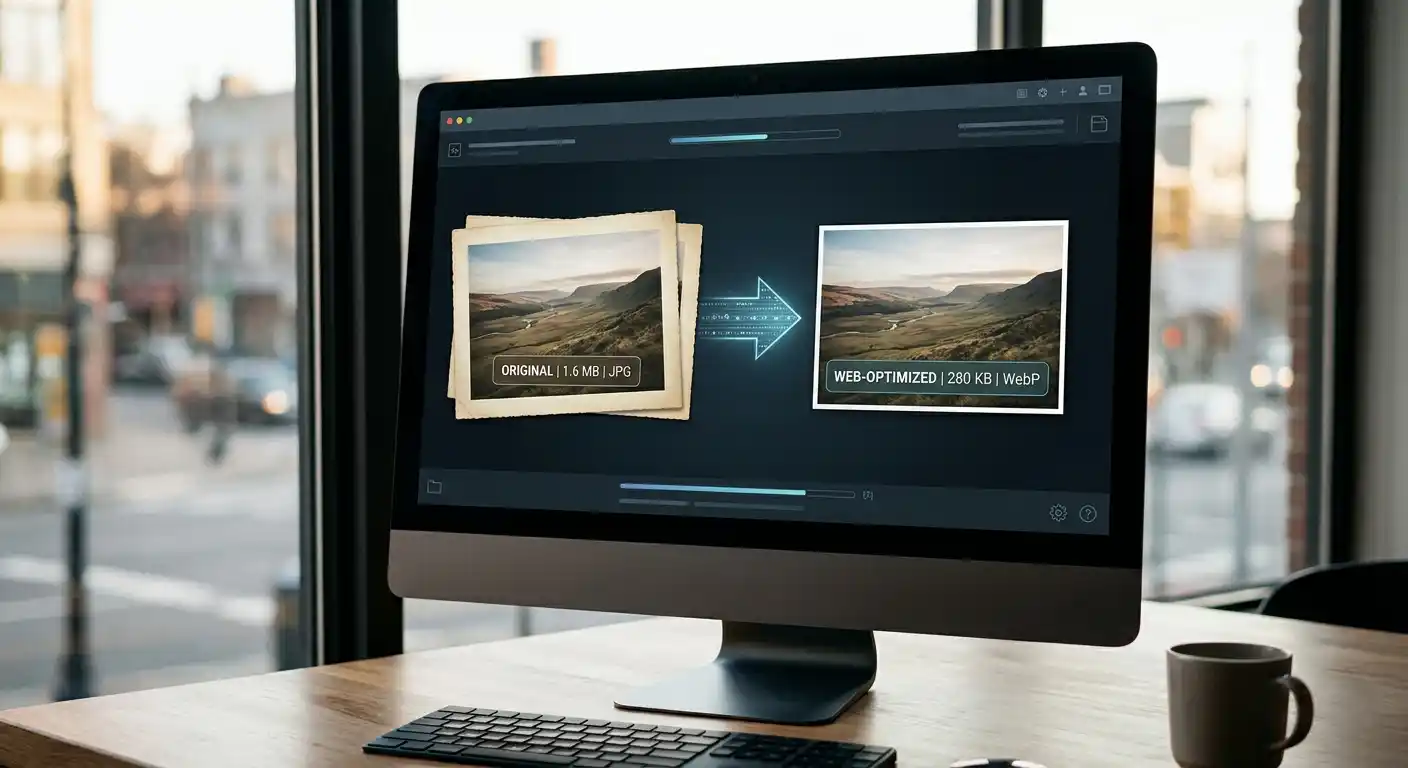
- Export in a web-friendly format like JPG or WebP
- Keep file size reasonable for faster uploads
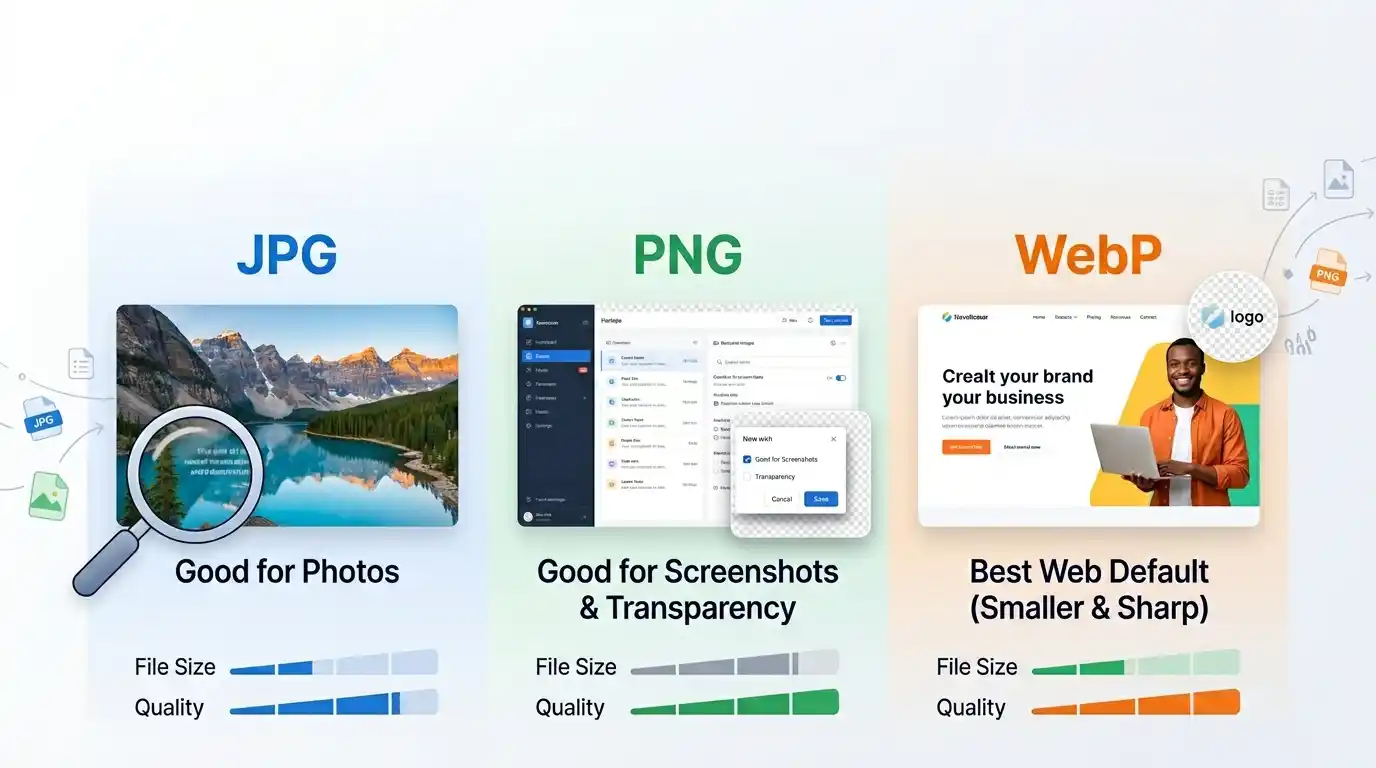
For most social platforms, JPG works well for photos, while PNG is better for graphics with text or transparency. WebP can be useful when supported and you want smaller file sizes.
If you already have one image and need to adapt it, this is where an Image Resizer becomes useful, especially when you need to quickly adjust aspect ratios without stretching the image. After resizing, you can also reduce file size using an Image Compressor to keep uploads fast. If you need a different format for transparency or cleaner graphics, a tool like JPG to PNG Converter can help in more specific cases.
A practical workflow that saves time
You do not need a separate design process for every single upload. You just need a cleaner workflow.
A simple approach:
- Decide the platform and placement first.
- Use the correct canvas size before designing.
- Keep important elements in the center-safe area.
- Export in a web-friendly format.
- Preview on mobile if the design includes text.
If you already have an image that is the wrong shape or size, start with SolutionBazz Image Resizer Tool If the exported file ends up heavier than it needs to be, run it through SolutionBazz Image Compressor Tool before uploading.
Which sizes are the safest defaults?
If you want a small set of “good enough most of the time” defaults, these are the ones I would keep handy:
| Use Case | Safe Default |
|---|---|
| Vertical social post | 1080 x 1350 px |
| Story / Reel / Short | 1080 x 1920 px |
| Square profile image | 400 x 400 px |
| Wide header | 1500 x 500 px |
| Large channel banner | 2560 x 1440 px |
This is not a replacement for platform-specific sizing, but it does simplify everyday work.
Frequently asked questions about social media image sizes
What is the best image size for Instagram posts?
For most Instagram feed posts, 1080 x 1350 px is the safest and most useful default. It gives you a 4:5 format that displays well in the feed without relying on square-only layouts.
What size should a YouTube thumbnail be?
The standard YouTube thumbnail size is 1280 x 720 px. It uses a 16:9 aspect ratio and remains the most dependable size for clear, sharp thumbnails.
Why do images get cropped even with correct dimensions?
Because platforms do not always display the full image the same way on every device. Profile masks, mobile previews, banners, and interface overlays can all change what the viewer actually sees.
Can I use the same image for all platforms?
You can, but it is rarely the best approach. Different platforms favor different aspect ratios, so resizing one base image for each placement usually gives a much cleaner result.
Final takeaway
The best social media image size is not one universal number. It depends on the platform, the placement, and how that image will be cropped on different devices.
Still, there are a few dependable defaults. For Instagram feed posts, 1080 x 1350 px is the easiest recommendation. For vertical formats like Stories, Reels, and Shorts, 1080 x 1920 px remains the safest working size. For profile and branding assets, the published platform recommendations matter more, especially on Facebook, YouTube, X, and LinkedIn.
If you want fewer upload surprises, build around the correct canvas from the start, and keep important content away from the edges. That one habit solves more social image problems than most people realize.
Sources checked
- YouTube Help: https://support.google.com/youtube/answer/12950272?hl=en
- Facebook Help Center, Page profile and cover sizes: https://www.facebook.com/help/125379114252045/
- Facebook/Instagram Help, Reels size and cover guidance: https://www.facebook.com/help/instagram/1038071743007909?locale=en_GB
- LinkedIn Help, Page image specs: https://www.linkedin.com/help/linkedin/answer/a563309
- X Help, profile and header sizes: https://help.x.com/en/managing-your-account/common-issues-when-uploading-profile-photo
- TikTok Help, profile photo minimum: https://support.tiktok.com/en/getting-started/setting-up-your-profile/adding-a-profile-photo-or-video
- Reporting on Instagram 3:4 support: https://www.theverge.com/news/676549/instagram-3-4-aspect-ratio-photos-phones-square-rectangle
Try the tool
Resize images for every social platform
Need a square post, vertical Story, banner, or header? Resize your images in the browser before uploading so they fit Instagram, Facebook, YouTube, and more without awkward cropping. Your files stay on your device, so the process stays private and fast.
Open Image Resizer